UEFI vs Legacy BIOS for SSD. When setting up a new SSD or installing an operating system, one common dilemma arises: UEFI vs Legacy BIOS for SSD, which boot mode delivers better compatibility and performance? As SSDs become the standard for faster storage and boot times, understanding which firmware mode to use is essential.
How To Recover Corrupted BIOS Without Display
Let’s break down the key differences, performance implications, and setup tips for choosing the right mode when working with SSDs and get to know which is better for SSD UEFI or Legacy.
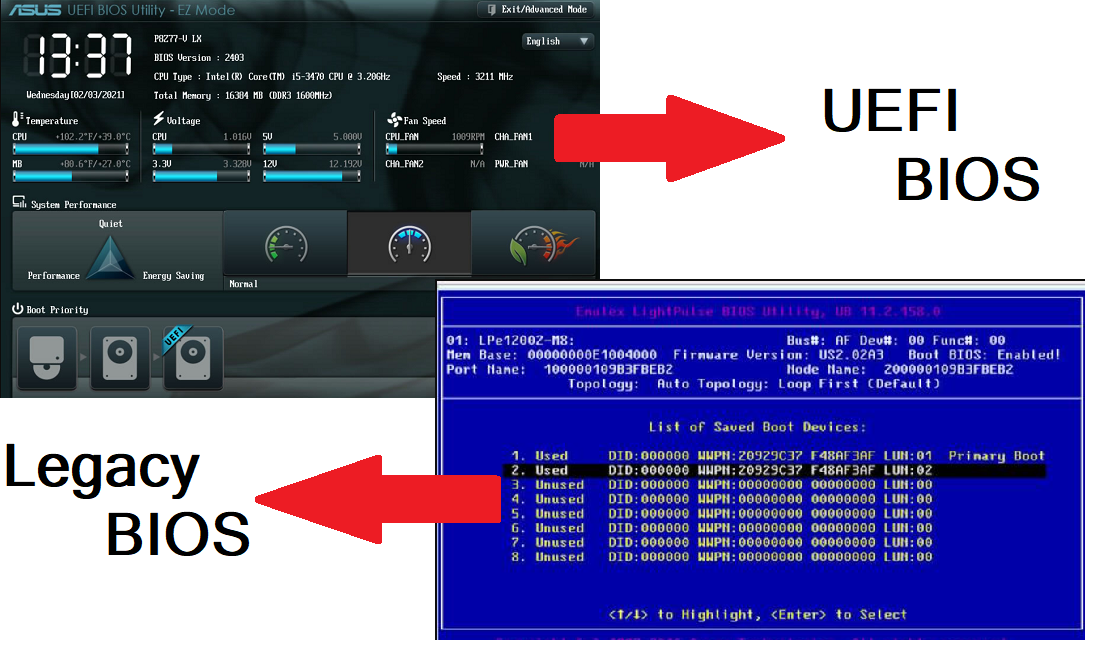
What Is UEFI and Legacy BIOS?
BIOS (Basic Input/Output System) and UEFI (Unified Extensible Firmware Interface) are types of firmware used to initialize your hardware before the operating system loads.
Legacy BIOS is the traditional firmware found in older systems, while UEFI is the modern replacement offering enhanced security and SSD optimization.
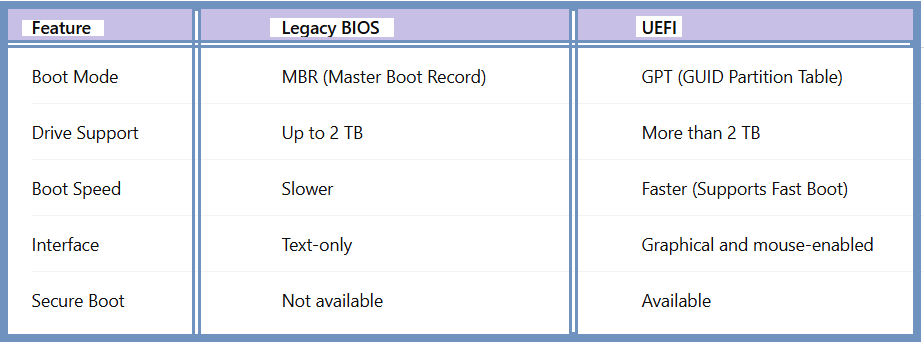
Why UEFI Is Better for SSD Performance:
If you’re using an SSD, especially a modern NVMe SSD, you’ll benefit significantly from using UEFI mode. Here’s why:
1.Faster Boot Speeds:
UEFI supports Fast Boot, drastically reducing boot times compared to Legacy BIOS. It initializes SSDs more efficiently, especially when combined with Secure Boot and GPT partitioning.
2.Better Compatibility with Modern Operating Systems:
Modern operating systems like Windows 10, Windows 11, and Linux distros are designed with UEFI in mind. Most of them require GPT partitioning, which is only supported in UEFI mode.
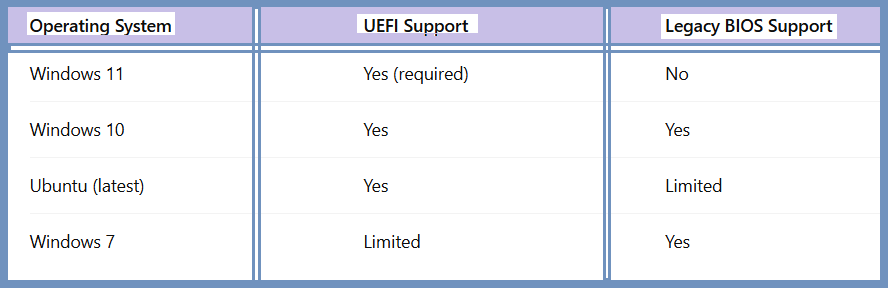
3.Support for Larger Drives:
With GPT, UEFI can support SSDs larger than 2TB, while Legacy BIOS (MBR) cannot. This is especially important for high-capacity SATA and NVMe SSDs.
Key Setup Differences Between UEFI vs Legacy BIOS for SSD:
When installing Windows on an SSD, the firmware mode matters.
In UEFI Mode:
-SSD must be partitioned as GPT.
-BIOS settings should have Secure Boot enabled.
-Operating systems install faster and are more secure.
In Legacy BIOS Mode:
-SSD uses MBR partitioning, limiting size and performance.
-Less compatibility with new software and hardware.
-No Secure Boot or advanced features.
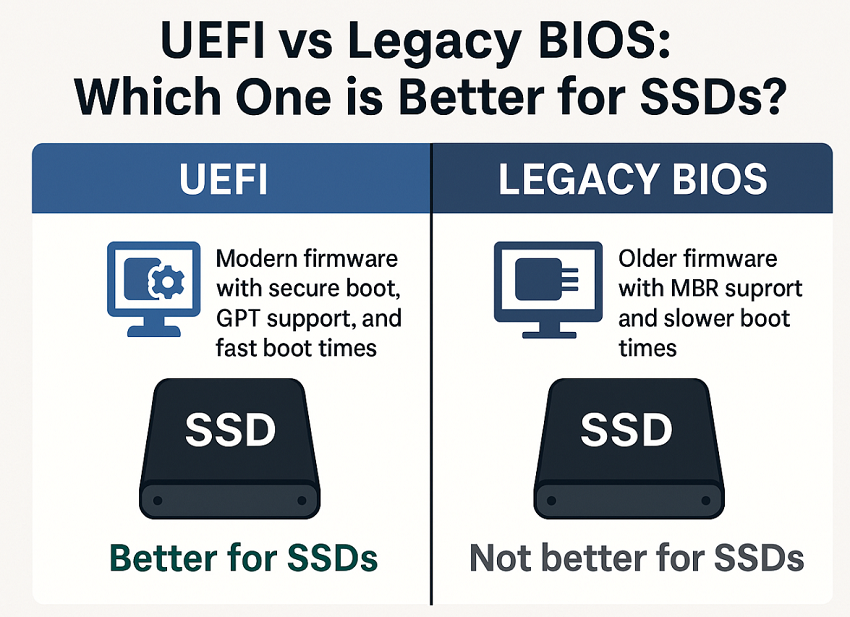
Which SSDs Work Best with UEFI?
Most modern SSDs, especially NVMe SSDs, are built to run in UEFI mode. While SATA SSDs can run in both modes, the full speed and boot efficiency is best unlocked using UEFI.
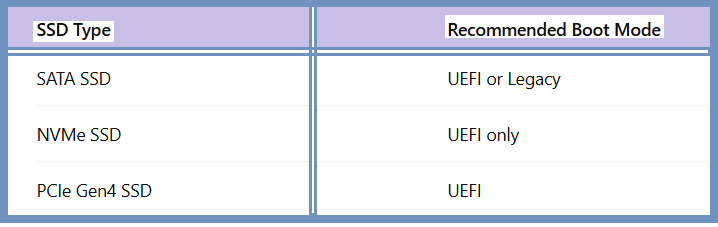
Using the correct boot mode for your SSD ensures better data transfer rates, system responsiveness, and firmware upgrade support in the long run.
How to Check and Switch Between UEFI and Legacy BIOS?
To Check Your Current Boot Mode:
1.Press Windows + R, type msinfo32, and hit Enter.
2.Look for “BIOS Mode”:
UEFI = Modern boot
Legacy = Traditional boot
To Switch:
1.Enter BIOS/UEFI settings during boot (Del, F2, or F10 depending on your device).
2.Change Boot Mode to UEFI or Legacy as needed.
Important: Changing boot modes usually requires reformatting the SSD (from MBR to GPT or vice versa).
When to Use Legacy BIOS for SSD?
While UEFI is generally the best choice, you may need to use Legacy BIOS if:
-You’re installing older operating systems like Windows 7.
-Your motherboard doesn’t support UEFI.
-The SSD is used on older hardware without GPT support.
However, performance may be restricted, and features like Secure Boot or modern BIOS configuration interfaces will be unavailable.
Conclusion: UEFI vs Legacy BIOS for SSD
Choosing between UEFI vs Legacy BIOS for SSD comes down to system compatibility and performance needs. For almost all modern builds, UEFI is the superior option; it offers faster boot times, better security, and compatibility with high-capacity SSDs and new operating systems.
If you’re using an NVMe SSD, UEFI is not just better—it’s essential. For older systems or compatibility reasons, Legacy BIOS might still serve a purpose, but its limitations are becoming increasingly clear.
FAQs: UEFI vs Legacy BIOS for SSD
1.Can I install Windows 11 in Legacy BIOS mode on SSD?
No, Windows 11 requires UEFI mode with Secure Boot and TPM enabled.
2.Will switching from Legacy to UEFI erase my SSD data?
Yes, switching boot modes typically requires reformatting the drive (MBR to GPT), which will erase all data.
3.Does UEFI improve SSD lifespan?
Not directly, but faster boot cycles and better power management may reduce wear compared to Legacy BIOS setups.
4.Is GPT better than MBR for SSDs?
Yes, GPT supports more partitions, larger drives, and is required for UEFI boot mode.