What To Do When Windows 10 Is Locked Out. In this article, you will read how to fix locked out of Windows 10 issue. Windows 10 offers high privacy and security features to its users. It has different lock options to secure your accounts. But, sometimes users forget the password and get locked out of Windows 10. Here, I have mentioned some methods to reset the password if Windows 10 is locked out.
What To Do When Windows 10 Is Locked Out?
Method 1 – Reset Your Account Password:
You can easily reset your password if your Windows 10 account is linked to your Microsoft account. It allows easy reactivation of Windows 10 and allows you to reset your sign-in password. To reset the sign-in password:
1.Open the sign-in page.
2.Enter the wrong password.
3.A warning message will appear and provide a specific link.

4.Use that link on another computer or your smartphone to open the Microsoft Account password reset page.
5.The next page will provide you with various options that Why can’t you sign-in page. Check the I forgot my password circle.
6.Click on Next.
7.Enter the Microsoft account information or your phone number.
8.Fill the captcha.
9.Click on Next.
10.You will receive the security code on your email or phone number, depending on what you were using for signing in.
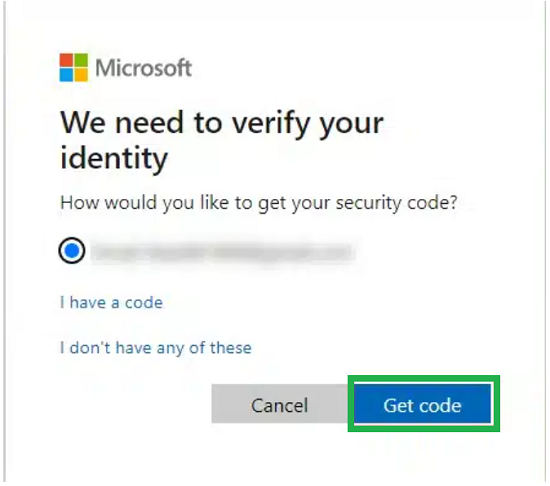
11.It will be sent to the registered recovery email and phone number. You must have access to the registered phone or email.
12.Check your email or phone message, whichever you picked, for the code.
13.Paste the security code and click Next.
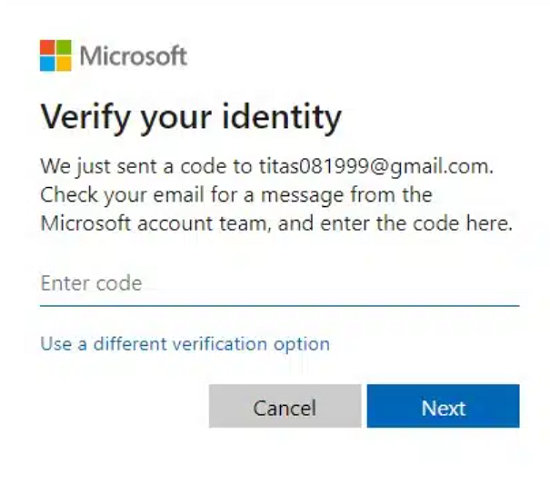
14.Enter the new password. Enter a valid and strong password.
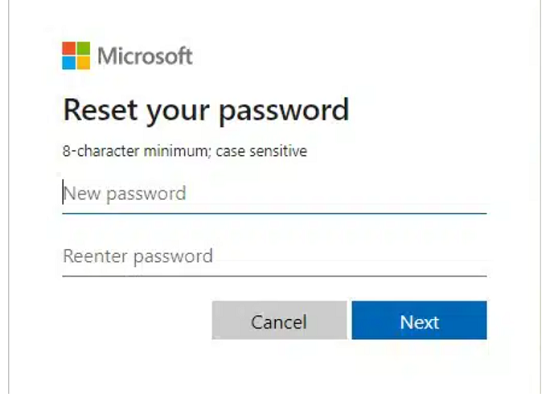
15.Click on Next.
16.You will receive the message that your account password has been reset.
17.Click on Next to finish the process.
18.Use this new password on the sign-in page of your PC to enter your user account.
Method 2 – Reset Windows 10 From Sign-in Screen:
You can reset Windows 10 account from the sign-in screen. To do so:
1.Click on the Ease of access icon in the Sign-in screen.
2.Hold the Shift key and click on the Restart option.
3.After your computer restarts, it will boot into the Windows Recovery Environment.
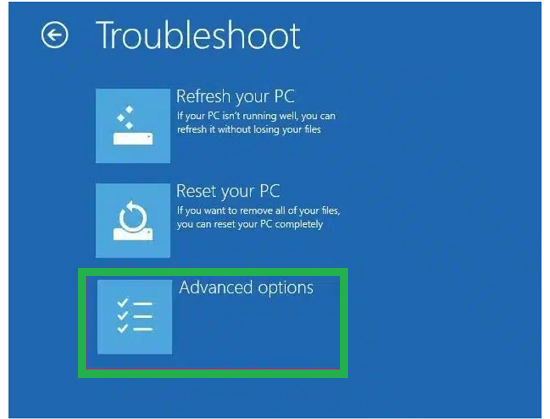
4.Click on the Troubleshoot option.
5.Then select the Advanced options.
6.Hold the Shift key and click on the Restart option.
7.After your computer restarts, it will boot into the Windows Recovery Environment.
8.Click on the Troubleshoot option.
9.Then select the Advanced options.
10.Select the Reset this PC option.
11.Choose whether you want to keep your files and apps or delete everything.
12.Wait for the reset to finish.