Windows 10 Mouse Cursor Glitch Solutions. In this article, you will read about what causes the mouse cursor glitch in Windows 10 and how to fix Windows 10 cursor glitch. The mouse is the most important part of the computer, but sometimes big issues occur like a cursor glitch. The cursor changes to the verticle line, circle, or some other different shapes, which makes the mouse difficult to navigate.
What Causes The Mouse Cursor Glitch In Windows 10?
There are several reasons why a mouse cursor glitch happens. Some of them are as under.
-Mouse is broken.
-Outdated mouse drivers.
-Pointer trail feature is enabled.
-Various background screen savers can also cause glitches.
-Outdated graphic driver.
Windows 10 Mouse Cursor Glitch Solutions:
Solution 1 – Check If The Mouse Is Broken Or Not:
Firstly, check if the mouse is working perfectly or not. Try to connect it with other PCs to see if it is also showing glitches on the other computers. If the fault lies in the mouse, replace it with the new one.
Solution 2 – Update Mouse Drivers:
Outdated mouse drivers can also cause a glitch. To update the mouse driver, follow the below-given steps:
1.Press Windows + R keys to open the Run utility.
2.Type devmgmt.msc
3.Press Enter to open the Device Manager.
4.Expand the Mice and other pointing devices option.
5.Right-click on the mouse driver and click on the Update driver option.

6.Select the Search automatically for the updated driver software option and follow the instructions given to complete the update.
7.Restart the computer.
To uninstall the mouse driver, follow the steps given below:
1.Right-click on the mouse driver.
2.Click on the Uninstall device option.
3.Follow the instructions on your screen to complete the uninstallation process.
4.Now, you won’t be able to move your cursor.
5.Press the Ctrl + Alt + Delete keys.
6.Press the Tab key to navigate to the Power button.
7.Press Enter to restart your computer.
8.After the computer restarts, the mouse driver should be automatically installed again.
Now, check if the mouse cursor glitch on Windows 10 has resolved.
Solution 3 – Disable Pointer Trails Feature:
When the pointer trails feature is enabled, the mouser cursor gets faint. To disable this feature, follow the steps given below:
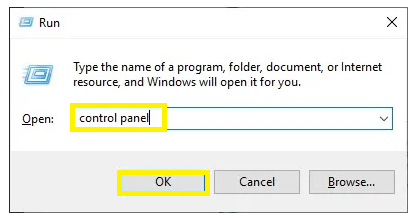
1.Open the Run utility again.
2.Type control panel and press Enter.
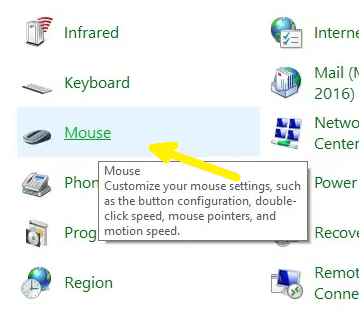
3.Locate the Mouse option and select it.
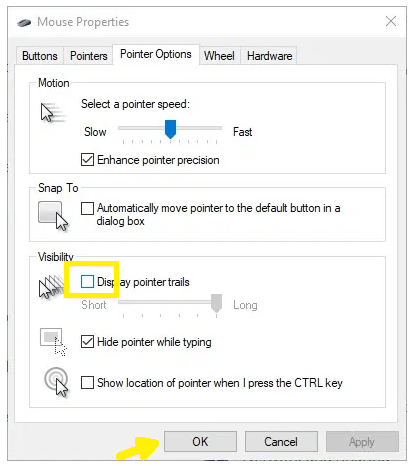
4.Select the Pointer Options tab.
5.Uncheck the Display pointer trails box.
6.Click on Apply and OK to save the changes.
Solution 4 – Disable Screen Saver:
Sometimes screen saver is also the culprit of this problem. To disable the screen saver, follow the steps given below:
1.Type Change screen saver in the Windows search bar.
2.Select the top option.
3.The Screen Saver Settings will get open.
4.Click on the drop-down menu in the Screen saver section.
5.Select the ‘ None ‘ option.
6.Click on Apply and OK to save the changes.

Solution 5 – Update GPU Driver:
The outdated graphic drivers can also cause the mouse cursor glitch. Updating it to the latest version can solve the problem. Follow the steps given below to update the GPU driver:
1.Press Windows + R keys to open the Run utility.
2.Type devmgmt.msc and press Enter to open the Device Manager.
3.Expand the Display adapters.
4.Right-click on the graphics driver.
5.Select the Update driver option from the pop-up menu.

6.Click on the Search automatically for the updated driver software option.
7.Follow the instructions given on your screen to finish the update.
8.Finally, restart your computer.
featured image source: microsoft.com