How To Fix Mouse Cursor Disappears On Windows. In this article, you will read how to recover the mouse pointer easily. Mouse pointer disappear? This is a common problem in Windows 10 and can be caused by a disconnected mouse, a disconnected touchpad, or driver conflicts. Learn how to fix the problem, which could be anything from a loose cable to driver conflicts
How To Recover Mouse Pointer:
One of the simplest reasons that can cause the mouse pointer to disappear in Windows 10 is if the desktop is turned on with the peripheral turned off. This can happen on laptops if you accidentally disable the touchpad, which can be done through a combination of buttons.
To resolve this issue on a desktop, try checking that the mouse is securely attached to the USB port, or try plugging it into another port.
Check for the cable of a mouse and if you have wireless mouse, check the batteries.
How To Fix Mouse Cursor Disappears On Windows?
Method 1 – Disable And Enable The Touchpad Settings:
To fix mouse cursor disappears on Windows 10, do the following:
1.Press the “Win” key to activate the Windows 10 menu.
2.Navigate with the arrows until you find the “Settings” option and press “Enter”.

3.Press the “Tab” key, navigate with the arrows to “Devices” and press “Enter”.
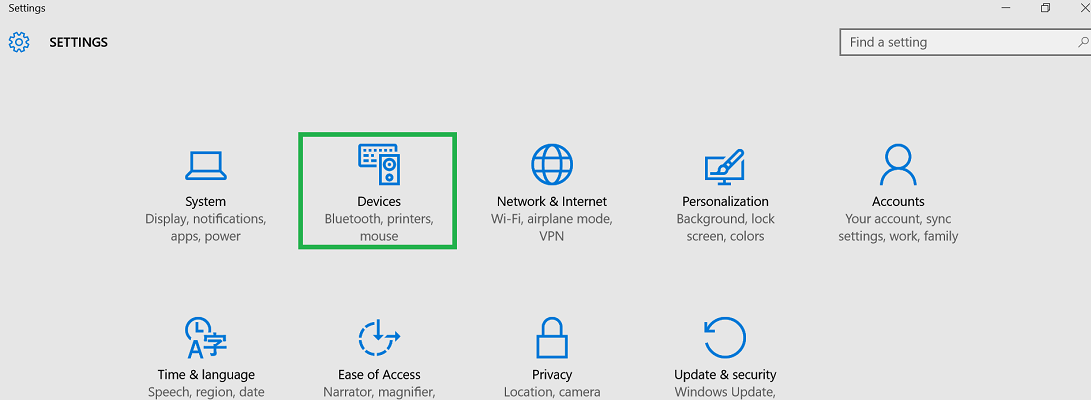
4.Press the “Tab” key, navigate to “Touchpad” and press “Enter”.
5.Press the “Tab” key to select the “Disabled” switch on the right.
6.Press the Spacebar to turn on the switch.

7.Once this is done, the touchpad will work again.
8.This procedure can be done with a mouse connected to the laptop if you have one available.
9.If the cursor is still not showing, restart Windows 10.
Method 2 – Remove Third-Party Program:
If none of these things brings your mouse pointer back, it’s possible that it has conflicted with a third-party program and is no longer working. Try updating your operating system and drivers to eliminate any potential issues, but if your cursor still doesn’t return, try the following to fix missing cursor on Windows 10:
1.Press the “Win” key, type “msconfig” (without quotes) and press “Enter”.
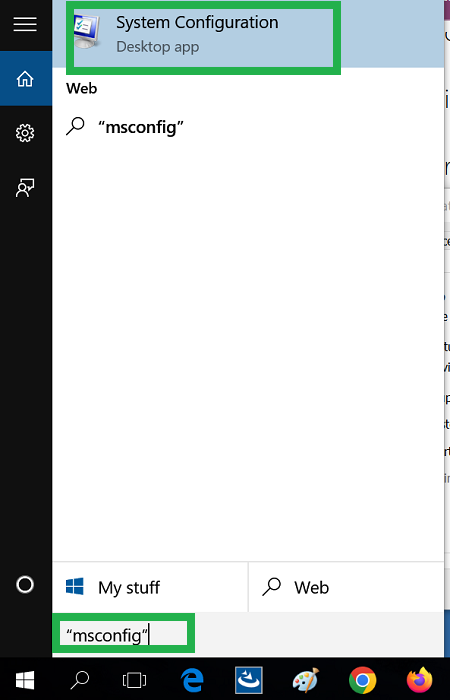
2.Press the “Tab” key until the cursor is positioned on the top tabs.
3.Use the arrows to navigate to “Services”.
4.Press the “Tab” key until the cursor selects the “Hide all Microsoft services” box.
5.Press the Space Bar to mark it.
6.Press the “Shift + Tab” keys to select the “Disable all” button and press “Enter”.
7.Press the “Tab” key until the cursor returns to the upper tabs;

8.Use the arrow keys to navigate to “Startup”.
9.Press the “Tab” key to select “Open Task Manager” and press “Enter”.
10.Press the “Tab” key until the cursor selects the upper tabs.
11.Use the arrow keys to navigate to “Startup”.
12.Press the “Tab” key until the cursor selects the “Name” field.
13.Navigate to a third-party (non-Microsoft) program and press the “Menu” key (which invokes the right-click menu).
14.Select “Disable” and press “Enter”.
15.Repeat for all third-party programs that start with Windows 10. 16.Keep Windows Security active.
17.Close Task Manager and Restart Windows 10.
18.The mouse should work again.
Method 3 – Update the Driver:
Updated or corrupted mouse drivers in the system also cause the issues. To update the driver:
1.On the keyboard press Win + X.
2.Use the navigation arrow keys to select the device manager.
3.Press enter.
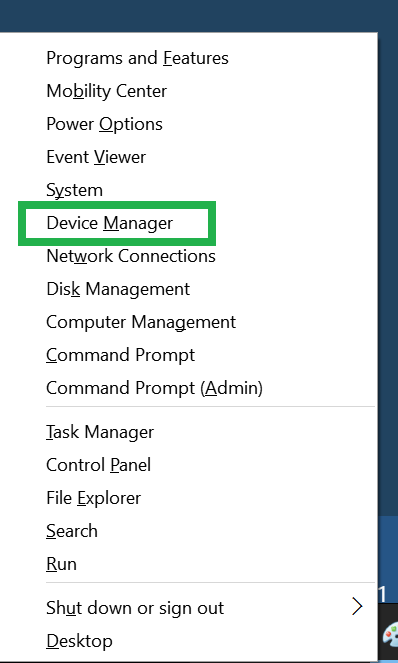
4.Press tab and down arrow key to navigate to Mice and other pointing devices.
5.Use down arrow to select the mouse drivers.
6.Use the keys shift + F10 to right-click on the driver.
7.Use down arrow key to select the update driver.
8.Press enter.
9.Follow the instructions.
10.Use the option Search automatically for the updated driver option.

11.Restart your system to save the changes, when the process gets finished.
Useful Keyboard Shortcuts When Cursor Disappears:
Ctrl + Shift + Esc: Open Task Manager to manage running applications.
Windows Key + D: Show or hide the desktop.
Windows Key + L: Lock your computer.
Alt + Tab: Switch between open applications.
Ctrl + Esc or Windows Key: Open the Start menu.
Windows Key + R: Opens the Run dialog box.
Windows Key + E: Open File Explorer.
Alt + F4: Close the active window or exit a program.
Windows Key + S: Open search.