How To Improve Gaming By Disabling HPET Settings. Are you struggling with FPS drops, input lag, or annoying micro-stutters while gaming, even though your hardware seems more than capable? The culprit might be a hidden Windows setting called HPET (High Precision Event Timer). If you’re serious about optimising your system for smoother gameplay, you should consider disabling HPET. In this guide, you’ll learn how to improve gaming by disabling HPET settings, why this tweak can make a difference, and the safest ways to apply it.
Whether you’re playing esports titles or demanding AAA games, optimising your system for performance can give you the edge you need. Let’s break down what HPET is, how it affects gameplay, and how you can disable it using two simple methods.
What is HPET (High Precision Event Timer)?
HPET, or High Precision Event Timer, is a hardware timer developed to deliver accurate timekeeping and synchronisation for multimedia and system events. Originally introduced to improve video playback and reduce timestamp calculation load on older CPUs, it was useful when multitasking and low clock speeds were a concern.
However, in modern gaming PCs with high-speed multi-core processors and GPUs, HPET may actually negatively impact gaming performance. Many users report FPS drops, screen tearing, and micro-stuttering due to HPET’s slow timer resolution on current hardware.
How Does HPET Affect Gaming Performance?
Modern game engines rely heavily on fast and responsive timing mechanisms for rendering frames, animations, and user input. Unfortunately, HPET operates at a lower frequency compared to newer timers like TSC (Time Stamp Counter) and ACPI PM Timer, causing latency issues in real-time scenarios like gaming.
Here’s how HPET impacts gameplay:
Introduces latency:
When HPET is enabled, it can cause input lag between your keyboard/mouse and what you see on screen.
FPS loss:
Disabling HPET has been shown to improve FPS by 3-4 frames on average.
Micro-stuttering:
Accumulated frame delay leads to small, annoying stutters, especially noticeable in competitive games.
If you’re running games that aren’t graphically intense but are paired with a powerful GPU, this bug becomes even more prominent.
Benefits of Disabling HPET for Gamers:
-Boosts frame rates (FPS)
-Minimizes screen tearing and input lag
-Improves overall game smoothness
-Better GPU utilisation
-Raw and direct connection between input and output
Even a reduction of 0.1ms in input delay can make a noticeable difference in competitive environments. For hardcore gamers, this gaming performance tweak can result in a smoother and more responsive experience.
How To Improve Gaming By Disabling HPET Settings:
There are two main methods to disable HPET on your PC: through Device Manager or using Command Prompt. Choose the one you’re comfortable with or try both to see which works better for your setup.
Method 1 – Disable HPET via Device Manager:
1.Press Windows + S and type Device Manager.
2.Then, press Enter.
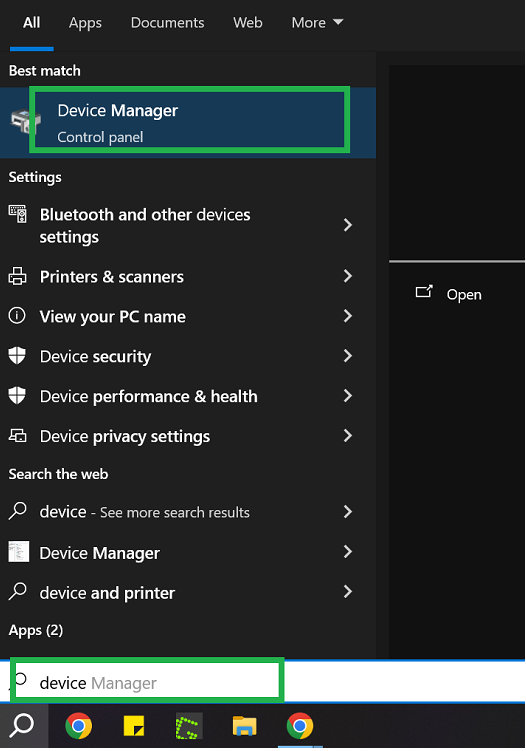
3.Expand the System Devices category.
4.Locate High Precision Event Timer.
5.Right-click on it and select Disable.
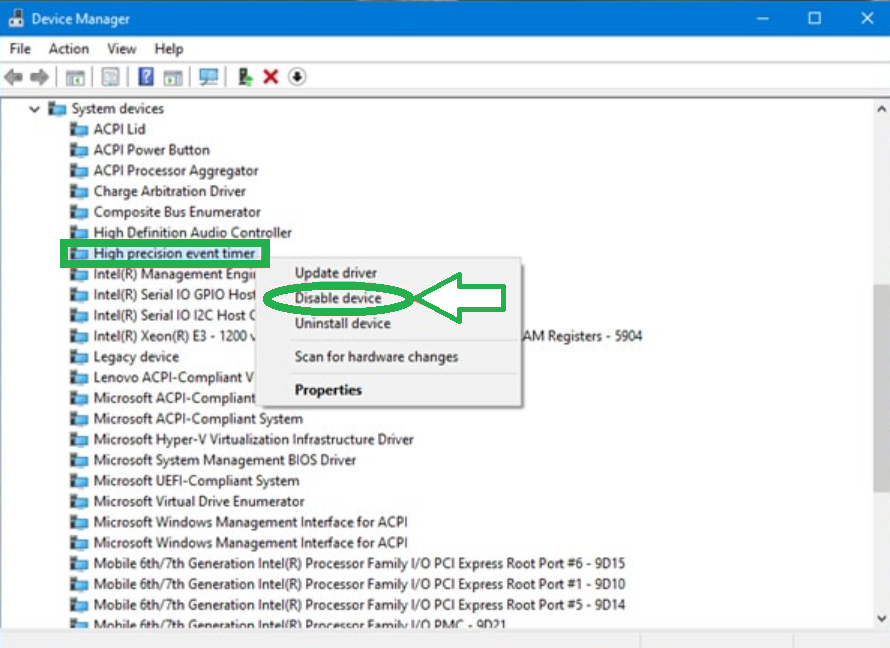
That’s it! You’ve now disabled HPET using the graphical interface.
Method 2 – Disable HPET Using Command Prompt (CMD):
This method is very effective.
1.Press Windows + S, type cmd, right-click on Command Prompt, and choose Run as administrator.
2.Type the following commands one by one and press Enter after each:
bcdedit /deletevalue useplatformclock
bcdedit /set disabledynamictick yes
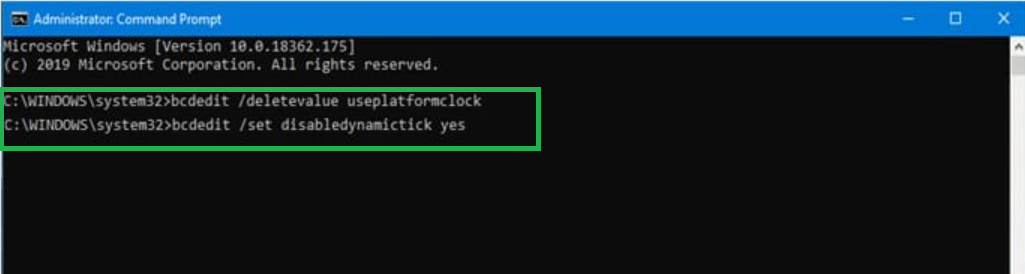
3.Restart your PC to apply changes.
⚠️ Note:-These commands only work on Windows 8.1, 10, and 11. Always use CMD with admin privileges for system-level changes.
How to Re-Enable HPET (Optional):
If you notice adverse effects after disabling HPET, you can revert to default settings:
1.Open CMD as Administrator.
2.Enter the following commands:
bcdedit /set useplatformclock true
bcdedit /set disabledynamictick no
3.Restart your computer.
Bonus Tip:-Test Performance After Disabling HPET:
Before and after you make changes, run a benchmark using tools like TimerBench or UserBenchmark. This will help you verify if disabling HPET actually boosts your gaming performance.
You can also track:
-Input latency
-Frame pacing
-Real-time rendering statistics
Testing ensures you make data-driven tweaks for optimal system performance.
Conclusion: How To Improve Gaming By Disabling HPET Settings?
Disabling HPET isn’t a universal fix, but it’s a powerful tweak that can improve FPS, reduce stuttering, and make your gameplay more responsive, especially on modern hardware. If you’re a gamer looking to squeeze every ounce of performance from your rig, it’s worth experimenting with HPET settings.
Just remember: always benchmark your system before and after making changes. That way, you’ll know for sure whether HPET is helping or hurting your gameplay.
If you’ve tested HPET on your system, let us know your results in the comments. Did it make your gameplay smoother? Every setup is different, and your feedback could help others in the community!