How To Fix BIOS Update Stuck – Complete Guide for Windows Users. Updating your BIOS can bring stability improvements, better hardware compatibility, and security patches. However, sometimes things don’t go as planned, leaving your PC stuck in BIOS after an update or showing a BIOS update stuck black screen.
This guide explains how to fix BIOS update stuck issues in Windows 10 and how to fix BIOS update stuck issues in Windows 11, along with safe recovery methods to prevent permanent damage.
How to Backup BIOS Before Flashing
How to Fix No Display After BIOS Update
Why BIOS Updates Get Stuck:
A BIOS update is a delicate process; if interrupted, it can leave your system unable to boot. Common reasons include:
-Power loss during update
-Corrupted BIOS file
-Incompatible firmware version
-Interrupted BIOS update due to forced shutdown
-Hardware instability or overheating
Tip: Always ensure a stable power source before flashing your BIOS.
How To Fix BIOS Update Stuck – Step-by-Step:
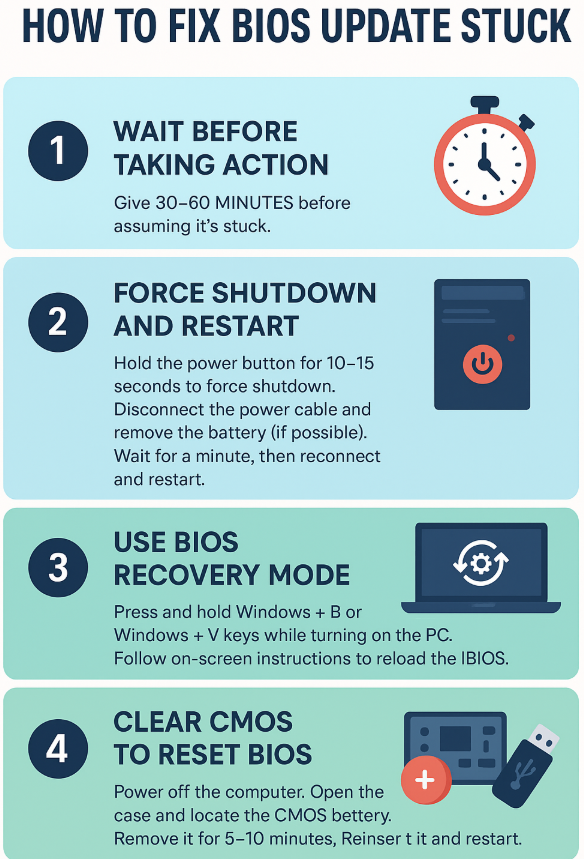
1.Wait Before Taking Action:
Sometimes, a BIOS update stuck screen only appears frozen, but is still processing in the background. If there’s no abnormal noise or overheating, give it at least 30–60 minutes before assuming it’s stuck.
2.Force Shutdown and Restart:
If your computer is stuck during the BIOS update for too long with no progress:
1.Hold the power button for 10–15 seconds to force shutdown.
2.Disconnect the power cable and remove the battery (if possible).
3.Wait for a minute, then reconnect and restart.
3.Use BIOS Recovery Mode:
Many modern PCs, especially Dell, HP, and Lenovo, include a built-in BIOS recovery after a failed update feature.
To enter recovery mode:
1.Press and hold Windows + B or Windows + V keys while turning on the PC.
2.Follow on-screen instructions to reload the BIOS.
4.Clear CMOS to Reset BIOS:
If recovery fails, reset BIOS after failed update using CMOS clearing. Follow the steps:
1.Power off the computer.
2.Open the case and locate the CMOS battery.
3.Remove it for 5–10 minutes.
4.Reinsert it and restart.
Note: This will restore BIOS defaults, removing any custom settings.
5.Re-flash the BIOS:
If your system boots but the BIOS is corrupted:
1.Download the correct BIOS version from the manufacturer’s website.
2.Create a bootable USB drive with the BIOS file.
3.Boot from the USB and re-flash the BIOS.
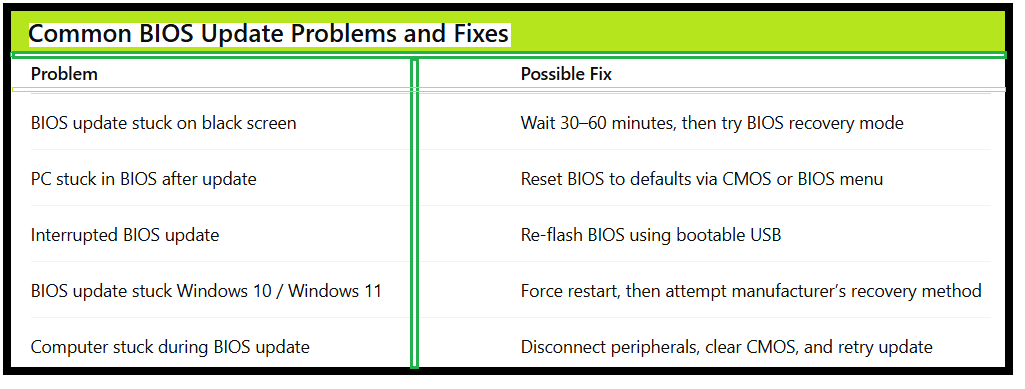
Common BIOS Update Problems and Fixes:
Tips to Prevent Future BIOS Update Stuck Issues:
Avoid Updating Without Need – Only update if it solves a real problem or adds compatibility.
Ensure Stable Power – Use an uninterruptible power supply (UPS).
Download from Official Source – Always get the BIOS file from the manufacturer’s website.
Follow Instructions Carefully – Each brand has specific update steps.
Backup Current BIOS – Many tools let you save a backup before updating.
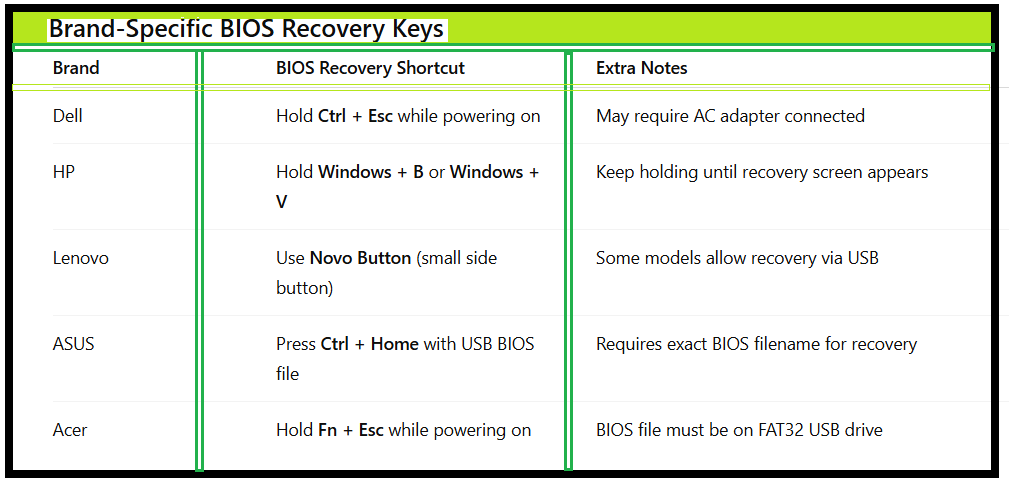
Brand-Specific BIOS Recovery Keys:
Final Words:
Knowing how to fix BIOS update stuck problems can save you from costly motherboard replacements. Whether it’s a BIOS update stuck screen or an interrupted BIOS update, patience and following manufacturer-specific recovery steps are key. Always prepare before updating and ensure you have a stable power supply to avoid future headaches.
FAQ – How To Fix BIOS Update Stuck:
Q1:Can I turn off my PC if the BIOS update is stuck?
If it’s stuck for hours with no signs of progress, you can force shutdown and try recovery methods.
Q2:Will clearing CMOS delete my data?
No, clearing CMOS only resets BIOS settings—it won’t affect files on your hard drive.
Q3:Can I recover BIOS without opening my PC?
Yes, many brands have BIOS recovery shortcuts you can use without removing the CMOS battery.
Q4:Does a failed BIOS update damage the motherboard?
In rare cases, yes—but recovery tools and re-flashing usually fix it.