How to Backup Laptop Data to Cloud Easily. In today’s digital age, our laptops hold the keys to our professional lives, precious memories, and crucial financial documents. Losing this data due to hardware failure, theft, or a sudden software crash is not just an inconvenience—it can be a catastrophe. This is why learning How to Backup Laptop Data to Cloud Easily has become a non-negotiable step for every computer user. Moving beyond traditional, physical backups like external hard drives, cloud backup for laptop solutions offer unparalleled accessibility, security, and automation, making them the superior choice for modern data protection.
Why Cloud Backup is Essential for Your Laptop Data
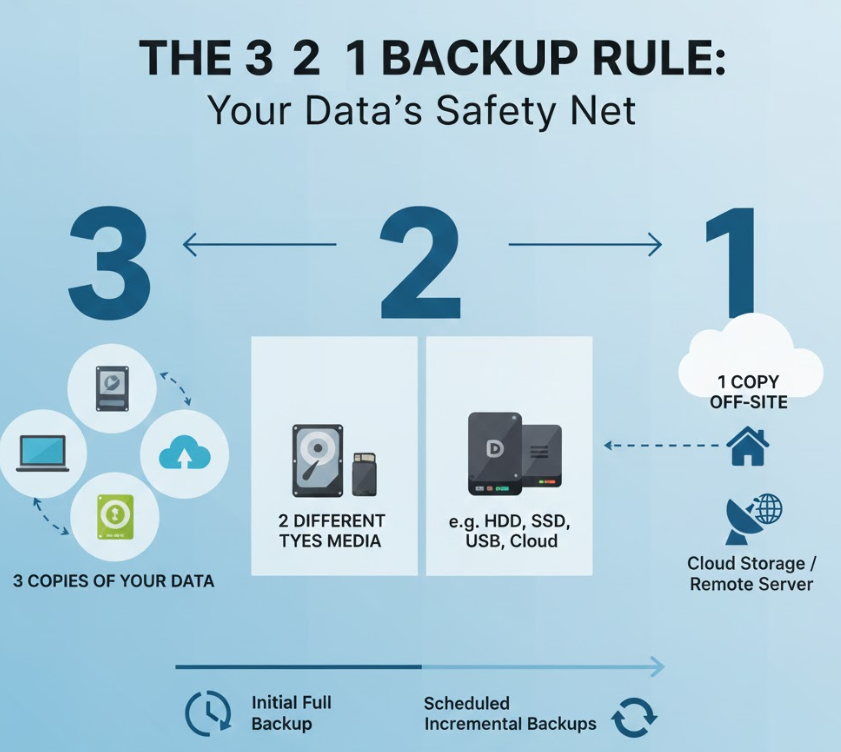
Many users still rely on manual backups or simply cross their fingers, hoping disaster never strikes. However, the benefits of using a dedicated cloud service for your laptop data are numerous and significantly outweigh the minimal effort required for setup. Opting for online data backup services ensures your files are protected by the “3-2-1 Rule” of backup—three copies of your data, on two different media, with one copy offsite (in this case, the cloud).
The Inherent Risks of Local Storage
Relying solely on local storage, even an external drive, carries significant risks. A single event, such as a fire, flood, or a surge of electrical current, can wipe out your laptop and its connected backup drive simultaneously. Ransomware attacks, which encrypt your local files until a ransom is paid, are also on the rise, and a connected external drive can be encrypted right along with your laptop’s main drive. This is where cloud-based data protection shines, offering a remote, air-gapped solution against localized threats.
Key Advantages of Cloud Backup
| Feature | Local Backup (e.g., External HDD) | Cloud Backup (Online Service) |
| Accessibility | Limited to physical location of the drive. | Accessible anywhere with an internet connection. |
| Automation | Requires manual initiation or a scheduled task setup. | Offers automatic cloud backup—set it and forget it. |
| Security | Susceptible to physical theft and local disasters. | Data is encrypted in transit and at rest, providing a secure cloud backup solutions. |
| Disaster Recovery | Recovery is quick, but the drive itself may be damaged. | Enables seamless laptop data recovery from cloud even after total machine loss. |
Best Cloud Storage for Data Backup
Selecting the right provider is the first crucial step in learning How to Backup Laptop Data to Cloud Easily. There are two main types of cloud services relevant to laptop backup: synchronized storage services and dedicated backup services. Both serve the primary purpose of helping you Backup Laptop Data to Cloud, but their methodologies differ.
1. Cloud Sync and Storage Tools
These popular services are designed primarily for file synchronization and sharing. They create a special folder on your laptop, and any files placed in this folder are immediately uploaded and synced across all your devices.
- Google Drive/OneDrive/Dropbox: These are the most common examples. Their strength lies in their integration with other software and operating systems. For instance, backup laptop to Google Drive/OneDrive/Dropbox is straightforward using their native desktop applications. They are excellent for backup important files online that you need to access frequently.
2. Dedicated Cloud Backup Services
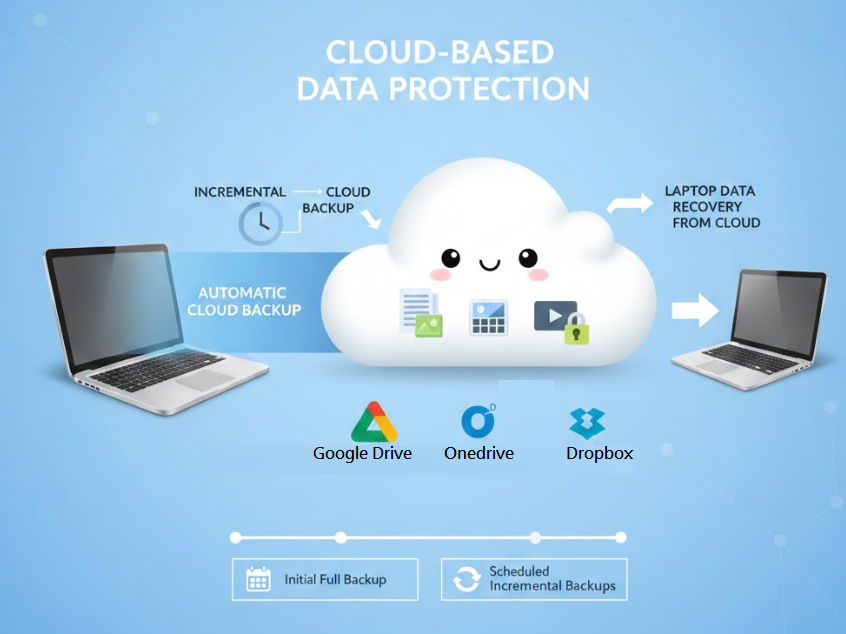
These services are built specifically for full-system and entire-disk image backups, often allowing for unlimited or very large storage capacity for a fixed fee per computer. They perform incremental cloud backup, meaning after the first full backup, they only upload the changes, making subsequent backups fast and efficient.
- Examples: Backblaze, IDrive, and CrashPlan.
- Key Feature: They back up everything on your laptop, not just the files in a specific folder, offering a complete image for total system restoration.
Choosing the best cloud storage for data backup depends on your needs. For simple file protection and sharing, a sync tool is fine. For comprehensive disaster recovery, a dedicated backup service is superior.
Step-by-Step Guide: How to Backup Laptop Data to Cloud Easily
The process of setting up your cloud backup for laptop is remarkably simple, regardless of the service you choose. Here is a general workflow to follow:
1. Selection and Account Setup
First, select a provider—for simplicity, let’s look at setting up a common sync tool. Create your account and download the desktop application. This software is the bridge that allows you to how to backup files to cloud without manual uploading via a web browser.
2. Software Installation and Initial Configuration
Install the desktop client (e.g., Google Drive’s “Backup and Sync” or Microsoft OneDrive). The application will prompt you to log in and select the folders on your laptop that you wish to protect.
- Critical Tip: Ensure you select your most important directories, such as “Documents,” “Pictures,” and “Desktop.” Don’t forget any folders containing professional or creative work.
3. Setting Up Automatic Cloud Backup and Scheduling
This is the feature that elevates cloud backup above manual methods. Both sync tools and dedicated services offer continuous or scheduled backup.
- Sync Tools: They offer “continuous backup,” where any change in the designated folder is instantly synced to the cloud.
- Dedicated Services: They allow you to how to schedule cloud backups, choosing daily, weekly, or even hourly intervals for your full-system image. Look for settings that control throttling (to prevent slowdowns) and when the backup should run (e.g., only when the laptop is idle).
| Backup Type | Recommended Files | Benefit |
| Continuous Sync | Working Documents, Photos, Active Projects | Instant versioning and access across devices. |
| Scheduled Full System | Operating System, Applications, All User Files | Complete system restoration after total hardware failure. |
| Incremental Backup | Any File with Minor Changes | Fast updates, saves bandwidth, uses block-level file changes. |
4. Encryption and Security Review
No guide on secure cloud backup solutions is complete without addressing security. Before the initial backup starts, review your provider’s security settings. Reputable services offer encryption in transit (SSL/TLS) and at rest (AES-256). For ultra-sensitive data, look for services that offer end-to-end encryption or a private encryption key. This ensures only you can decrypt and access your files, even if the service provider’s servers are compromised.
🚀 Advanced Tactics for Cloud Backup and Recovery
Once the initial backup is complete—which can take several hours depending on your internet speed and data volume—your data protection strategy moves into maintenance mode.
Continuous Data Protection and Versioning
A key benefit of most modern remote cloud storage for laptops is file versioning. If you accidentally save over a file or it becomes corrupted, the service retains previous versions for a certain period (e.g., 30 days, 6 months, or even forever). This is what allows for true laptop data recovery from cloud in cases of file corruption or accidental deletion. Make sure to check your service’s version retention policy.
Understanding Incremental vs. Full Backups
Most dedicated backup solutions use incremental cloud backup. This is a highly efficient method:
- Full Backup: The first backup captures every selected file.
- Incremental Backups: After the first run, the system only uploads the tiny pieces of files (blocks) that have changed since the last backup. This saves massive amounts of time and bandwidth.
This intelligent approach ensures that keeping up with your automatic cloud backup is an entirely passive process that won’t interfere with your daily work.
Using Cloud for System Image
For the ultimate defense against disaster, some dedicated services allow for a disk image backup. This is a complete snapshot of your entire hard drive, including the operating system, applications, and settings. This means if your laptop is completely destroyed, you can use the image to restore your entire digital environment onto a new machine quickly—far beyond simply restoring files. This is a critical feature for comprehensive cloud-based data protection.
☁️ Comparing Cloud Sync and Backup Tools
Choosing the right tool is key to finding the easy laptop backup methods that fit your lifestyle. Below is a comparison of some popular options focusing on their primary use cases.
| Service Provider | Primary Model | Best Cloud Storage for Data Backup Feature | Ideal Use Case |
| Google Drive | Sync/Storage | Generous free tier (15GB shared with Gmail/Photos). | Users heavily invested in the Google ecosystem and Google Workspace. |
| Microsoft OneDrive | Sync/Storage | Deep integration with Windows 10/11 and Microsoft 365. | Windows users seeking seamless system and document sync. |
| Backblaze | Dedicated Backup | Unlimited storage, simple set-it-and-forget-it interface. | Users who need a complete, hands-off cloud backup for laptop solution. |
| IDrive | Hybrid | Backup multiple devices and external drives under one account. | Power users with many devices and large amounts of data. |
Understanding How to Backup Laptop Data to Cloud Easily is simpler than ever with these powerful tools. Whether you’re a student safeguarding papers or a professional protecting client data, the cloud provides a resilient, accessible, and automated solution. Implementing one of these easy laptop backup methods ensures your digital life is safeguarded against almost any contingency. Making the switch to remote cloud storage for laptops is the smartest decision you can make for digital peace of mind.
❓ Frequently Asked Questions (FAQ)
What is the difference between Cloud Sync and Cloud Backup?
Cloud Sync (like Google Drive or Dropbox) is designed to keep files updated across multiple devices. If you delete a file on your laptop, it is usually deleted from the cloud. Cloud Backup (like Backblaze) is designed for archival and disaster recovery, retaining file versions and deleted files for a set period, offering true cloud-based data protection.
How secure is my data in remote cloud storage for laptops?
Extremely secure, provided you choose a reputable provider. Secure cloud backup solutions encrypt your data using AES-256 before it leaves your laptop and keep it encrypted on their servers. For the highest security, use a service that offers end-to-end encryption or a private encryption key.
Can I still use an external hard drive for backup?
Yes, and in fact, it’s recommended! The “3-2-1 Rule” suggests two different storage types. Having an external drive (local) and a cloud service (off-site) provides the best of both worlds—fast local recovery and protection from physical disaster with laptop data recovery from cloud.
What is incremental cloud backup?
It’s a smart backup method where, after the first full backup, the software only uploads the changed parts of files (usually small data blocks) rather than the entire file. This makes your ongoing, automatic cloud backup faster and more efficient, reducing bandwidth usage.