How To Fix Boot Loop After BIOS Update. A BIOS update is supposed to improve system stability, hardware support, and security. But sometimes things go sideways. Your PC suddenly keeps restarting, gets stuck on the manufacturer logo, or shows nothing except a black screen. Frustrating? Absolutely.
If you are searching for How To Fix Boot Loop After BIOS Update, you are not alone. A failed firmware update can trigger a serious system boot failure, especially if the installation was interrupted or incompatible settings were applied automatically.
The good news is that most systems can still be recovered. In many cases, the motherboard itself isn’t damaged at all. The issue is usually linked to corrupted firmware settings, unstable boot configurations, or memory detection problems. With the right BIOS troubleshooting steps, you can often bring the system back without replacing hardware.
In this guide, you’ll learn practical methods to fix a laptop stuck in boot loop, recover damaged firmware, and restore stable startup behavior after a BIOS flash.
Why Does a Boot Loop Happen After a BIOS Update?
Before jumping into fixes, it helps to understand what actually causes the issue.
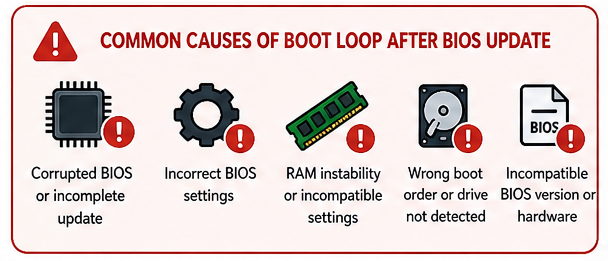
A BIOS update changes low-level motherboard firmware settings that control hardware initialization. If something interrupts the process — power loss, incompatible firmware, or unstable defaults — the PC may continuously restart.
Here are the most common causes:
| Cause | What Happens |
|---|---|
| Incorrect BIOS settings | System fails hardware checks |
| Corrupted firmware | BIOS cannot initialize properly |
| Boot order changed | Windows loader cannot start |
| RAM instability | Endless restart cycle |
| Incompatible update | Firmware conflicts with motherboard revision |
Sometimes the PC may show a black screen after BIOS update, while other systems repeatedly reboot before Windows even appears.
And honestly, this issue is more common on gaming motherboards than most people realize.
Initial Checks Before Performing Advanced Fixes
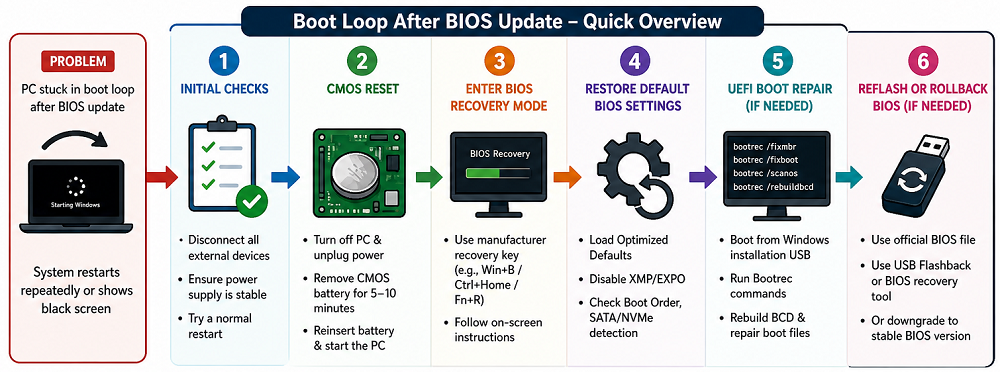
When learning How To Fix Boot Loop After BIOS Update, start with the simple things first. Don’t rush into reflashing the BIOS immediately.
Disconnect External Devices
USB devices can interfere with startup detection after firmware changes.
Disconnect:
- USB drives
- Printers
- External hard drives
- Gaming controllers
- Docking stations
Then restart the system.
It sounds basic, but this actually solves a surprising number of motherboard boot loop issue cases.
How To Fix Boot Loop After BIOS Update Using CMOS Reset
One of the most effective fixes is resetting the CMOS.
A CMOS reset after BIOS update clears unstable firmware configurations and restores factory defaults.
Clear CMOS Battery Method:
Follow this process carefully:
- Turn off the PC completely
- Disconnect power cable
- Remove laptop battery if possible
- Open the case
- Locate the CMOS coin-cell battery
- Remove it for 5–10 minutes
- Hold the power button for 20 seconds
- Reinsert the battery
- Power on the system
This clear CMOS battery method resets problematic voltage, memory, and boot settings.
What CMOS Reset Fixes
| Problem | Can CMOS Reset Help? |
|---|---|
| Boot loops | Yes |
| RAM instability | Yes |
| Incorrect boot order | Yes |
| Black screen | Sometimes |
| Corrupted firmware | Limited |
Many users successfully restore BIOS default settings using this approach without additional tools.
Enter BIOS Recovery Mode
If the motherboard supports emergency recovery, you may be able to activate BIOS recovery mode.
Different manufacturers use different recovery keys:
| Brand | Recovery Shortcut |
|---|---|
| HP | Windows + B |
| Dell | CTRL + ESC |
| ASUS | CTRL + HOME |
| Lenovo | Fn + R |
| MSI | USB Flashback Button |
During startup, hold the required key combination while powering on the PC.
This process loads a backup firmware image and acts as a built-in firmware recovery solution.
Honestly, modern motherboards are much safer now than older systems because many include dual BIOS protection.
Fix BIOS Boot Failure Through Default Settings
Sometimes the update succeeds, but aggressive firmware settings cause instability.
To fix BIOS boot failure, enter the BIOS menu and:
- Disable XMP or EXPO memory profiles
- Reset overclocking values
- Enable UEFI boot mode
- Restore optimized defaults
- Verify storage detection
This step matters because unstable RAM timings often trigger endless reboots after updates.
If your PC is still restarting after BIOS update, memory training failures may be the hidden cause.
How To Fix Boot Loop After BIOS Update With UEFI Boot Repair
A damaged Windows bootloader can also create restart loops.
If Windows files became corrupted during the update, you may need UEFI boot repair.
Steps to Repair UEFI Boot
- Create a Windows installation USB
- Boot into recovery environment
- Select “Repair Your Computer”
- Open Command Prompt
- Run these commands:
bootrec /fixmbr
bootrec /fixboot
bootrec /scanos
bootrec /rebuildbcd
This repairs startup entries and rebuilds damaged boot data.
Many people assume the BIOS itself is broken when actually the issue is Windows corruption.
That distinction matters.
Recover Corrupted BIOS Safely
In severe cases, the firmware itself becomes damaged.
To recover corrupted BIOS, use your motherboard’s recovery feature or USB flashback system.
Important Tips Before Reflashing
| Safe BIOS Flashing Tip | Why It Matters |
|---|---|
| Use official firmware only | Prevent compatibility issues |
| Avoid power interruptions | Stops firmware corruption |
| Use FAT32 USB drive | Ensures detection |
| Match motherboard revision | Prevents invalid BIOS installation |
| Reset BIOS before updating | Improves stability |
Always prioritize flashing BIOS safely rather than rushing through the process.
A failed flash can create a permanent hardware compatibility issue if incorrect firmware is installed.
What To Do If Windows Is Not Booting After BIOS Update
Sometimes the BIOS works correctly, but Windows itself refuses to load.
If you encounter Windows not booting after BIOS update, try these fixes:
Disable Secure Boot Temporarily
Some BIOS updates automatically re-enable Secure Boot, causing compatibility issues with existing Windows installations.
Check Boot Drive Detection
Verify that:
- SSD/HDD appears in BIOS
- SATA mode is correct
- NVMe drive is detected
Run Startup Repair Process
Windows recovery tools can automatically repair damaged startup files.
This built-in startup repair process works especially well if system files became corrupted during repeated shutdown cycles.
Laptop Stuck In Boot Loop? Try Minimal Hardware Boot
If your laptop stuck in boot loop problem continues, reduce the system to minimum hardware.
Disconnect:
- Secondary RAM sticks
- Extra drives
- GPU (if integrated graphics available)
- PCIe accessories
Then boot using:
- One RAM module
- Primary drive only
- Default BIOS settings
This helps isolate failing hardware conflicts caused by the firmware update.
Sometimes even a stable RAM kit becomes unstable under new BIOS memory training algorithms.
Weird, but it happens.
Advanced BIOS Troubleshooting Steps
If basic recovery methods fail, use these advanced BIOS troubleshooting steps.
Reflash Older Stable BIOS Version
New firmware isn’t always better.
Some updates introduce:
- CPU microcode instability
- RAM compatibility bugs
- Voltage mismanagement
- GPU initialization issues
Rolling back to an older stable BIOS often resolves the problem.
Check Motherboard Compatibility
Verify:
- Exact motherboard model
- PCB revision
- BIOS version support
Installing firmware for the wrong revision can cause a complete system boot failure.
Signs the Motherboard May Be Physically Damaged
Sometimes the problem goes beyond software corruption.
Watch for these symptoms:
- Burning smell
- No motherboard LEDs
- No fan spin
- USB ports dead
- No response to CMOS reset
In these situations, professional repair may be necessary.
Thankfully, most boot loops after BIOS updates are recoverable without replacing the motherboard.
Best Practices To Avoid Future BIOS Update Problems
Prevention is always easier than recovery.
Here are smart habits for future updates:
| Best Practice | Benefit |
|---|---|
| Update only when necessary | Reduces risk |
| Use UPS power backup | Prevents interruption |
| Avoid beta BIOS versions | Improves stability |
| Backup current BIOS | Easier rollback |
| Keep default settings before update | Reduces conflicts |
A little preparation can save hours of troubleshooting later.
Conclusion
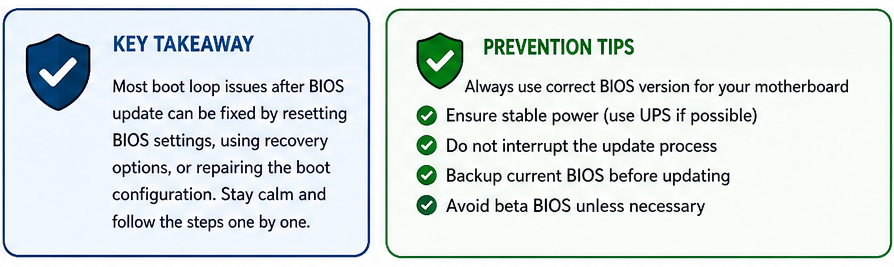
Learning How To Fix Boot Loop After BIOS Update can feel intimidating at first, especially when the screen stays black and the PC endlessly restarts. But in most cases, the issue is fixable.
Start with simple solutions like the clear CMOS battery method, default BIOS restoration, and external device removal. Then move toward advanced fixes like UEFI boot repair, recovery flashing, and firmware rollback if necessary.
The key is patience. Don’t panic and assume the motherboard is dead immediately. Many boot loops are caused by unstable motherboard firmware settings, damaged boot entries, or temporary configuration conflicts rather than permanent hardware failure.
By following the correct recovery steps and using proper firmware recovery solution methods, you can usually restore your PC without expensive repairs.
FAQ
Is a boot loop after BIOS update common?
Yes, it can happen due to unstable settings, interrupted flashing, or compatibility issues.
Can a CMOS reset fix boot loop issues?
Absolutely. A CMOS reset after BIOS update often resolves startup instability and incorrect BIOS settings.
What causes a black screen after BIOS update?
A corrupted firmware installation, incorrect GPU initialization, or failed boot configuration may cause a black screen after BIOS update.
Can I recover corrupted BIOS without replacing the motherboard?
Yes. Many modern systems include BIOS recovery mode or USB Flashback features that help recover corrupted BIOS safely.
Should I update BIOS regularly?
No. Update BIOS only when necessary for hardware support, security patches, or stability improvements.