How to Install Windows on Chromebook: A Complete Beginner’s Guide. Chromebooks are known for their speed, simplicity, and security, but they aren’t the right fit for everyone. If you’ve ever needed desktop applications like Microsoft Office, Adobe software, or Windows-only development tools, you’ve probably wondered, can you install Windows on Chromebook?
The short answer is yes—but not every Chromebook supports it. The process depends on your hardware, firmware, and whether your device can replace ChromeOS with Windows. Some models work surprisingly well, while others have limited driver support or use processors that aren’t compatible with Windows.
In this Chromebook Windows installation guide, you’ll learn how to check compatibility, prepare your device, and safely install Windows. Whether you want to Install Windows 11 on Chromebook, Install Windows 10 on Chromebook, or explore Windows on Chromebook without Linux, this guide explains everything in plain English.
Quick Answer (Featured Snippet)
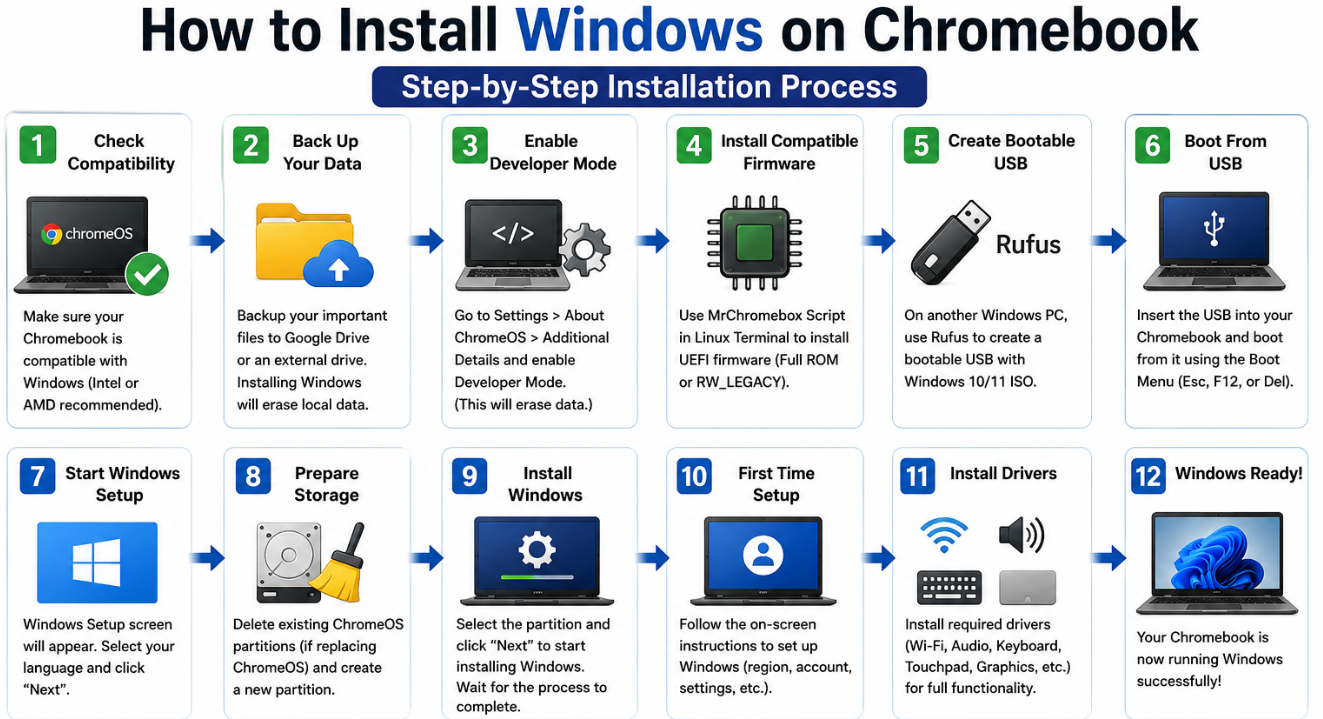
To install Windows on a Chromebook, first verify that your device is compatible, back up your data, enable Developer Mode, replace the stock firmware with compatible UEFI Firmware, create a Bootable USB using Rufus, boot from the USB installer, and complete the Windows setup. Finally, install the required device drivers to restore Wi-Fi, audio, touchpad, and keyboard functionality.
What Are Pros And Cons Of A Chromebook
Can Every Chromebook Run Windows?
Unfortunately, no.
Many modern Chromebooks can run Windows, but compatibility depends on the processor, firmware support, and available drivers. An Intel Chromebook generally offers the best experience, while some AMD Chromebook models are also supported. Most ARM Chromebook devices cannot run the standard x86 version of Windows because of architectural differences.
Before attempting to Replace ChromeOS with Windows, check whether your Chromebook appears on community compatibility lists and has working drivers.
Chromebook Compatibility Overview
| Chromebook Type | Windows Support | Recommendation |
|---|---|---|
| Intel Chromebook | Excellent | Recommended |
| AMD Chromebook | Good | Check driver availability |
| ARM Chromebook | Very Limited | Not recommended |
| Enterprise Chromebook | Varies | Verify firmware support |
What You’ll Need Before You Start
Preparation is the difference between a smooth installation and hours of troubleshooting.
Gather these items before making any changes:
- A compatible Chromebook
- A Windows 11 ISO or Windows 10 ISO
- A USB flash drive (16 GB or larger)
- Another Windows PC
- Stable internet connection
- A reliable USB Installer tool such as Rufus
- External storage to back up personal files
Because installing Windows replaces ChromeOS, all local data will be erased. Back up documents, photos, and important files before continuing.
Common Reasons People Install Windows on a Chromebook
Every user has different goals, but these are the most common reasons:
- Running Windows-only applications
- Using professional software unavailable on ChromeOS
- Playing PC games
- Developing software in Windows
- Extending the usefulness of older Chromebook hardware
- Replacing ChromeOS for a more familiar desktop experience
Some users also compare ChromeOS vs Windows performance and decide that Windows offers greater flexibility despite requiring more storage and resources.
Enable Developer Mode
One of the first steps is enabling Developer Mode.
Developer Mode removes certain security restrictions and allows firmware modifications. During this process, your Chromebook will erase all locally stored data, so confirm your backup before proceeding.
Once Developer Mode is enabled, you’ll have access to features needed for firmware replacement and advanced system configuration.
Warning
Enabling Developer Mode reduces some of ChromeOS’s built-in security protections. Only continue if you understand the risks and are comfortable making system-level changes.
Prepare the Firmware
Installing Windows requires replacing or modifying the Chromebook’s firmware.
Most compatible devices use the MrChromebox Script to install Full ROM Firmware or configure RW_LEGACY, depending on the Chromebook model.
This process typically involves:
- Opening the Linux Terminal.
- Downloading and running the firmware script.
- Installing compatible UEFI firmware Chromebook Windows support.
- Completing any required Firmware Update or BIOS Flash process.
After installing compatible firmware, your Chromebook can boot from a USB drive just like a traditional Windows laptop.
How to Forget a Wi-Fi Network on Chromebook
How to Install Windows on Chromebook Using USB
Now that your Chromebook is prepared with compatible firmware, it’s time to install Windows.
Step 1: Create a Bootable USB
On a Windows PC, download the Windows 11 ISO or Windows 10 ISO directly from Microsoft. Then use Rufus to create a Bootable USB.
Choose the correct partition scheme and file system recommended for your Chromebook’s UEFI Firmware. When the process finishes, safely eject the USB drive.
Step 2: Boot From the USB Installer
Insert the USB drive into your Chromebook and power it on.
Press the appropriate boot key (this varies by model) and select the USB drive from the boot menu. If the firmware was installed correctly, the Windows Setup screen should appear.
Step 3: Install Windows
Click Install Now and follow the on-screen instructions.
When you reach the storage selection screen, delete the existing ChromeOS partitions if your goal is to Replace ChromeOS with Windows. Then create a new partition and continue the installation.
If you’re interested in a Chromebook Windows dual boot setup, keep in mind that it requires additional configuration and is not supported on every device.
Step 4: Install Device Drivers
After Windows starts for the first time, some hardware may not work immediately.
Install the required Device Drivers, including:
- Wi-Fi Driver
- Keyboard Driver
- Touchpad Driver
- Audio Driver
- Graphics driver
Without the proper drivers, features like wireless networking, sound, or the touchpad may be unavailable.
How To Find WiFi Password On Chromebook
ChromeOS vs Windows Performance
| Feature | ChromeOS | Windows |
|---|---|---|
| Boot Speed | Excellent | Good |
| Windows Software | No | Yes |
| Gaming Support | Limited | Excellent |
| Office Applications | Web Apps | Full Desktop Apps |
| Hardware Requirements | Low | Higher |
| Customization | Limited | Extensive |
For users who rely on desktop software, Windows for Chromebook offers much greater flexibility. However, ChromeOS remains the better choice for battery life, simplicity, and security.
Common Windows Installation Errors on Chromebook
Even with careful preparation, problems can occur. Fortunately, most are easy to solve.
Troubleshooting Guide
| Problem | Possible Cause | Solution |
|---|---|---|
| USB won’t boot | Incorrect firmware | Reinstall UEFI firmware |
| No Wi-Fi | Missing driver | Install the correct Wi-Fi Driver |
| Touchpad not working | Driver unavailable | Install the Touchpad Driver |
| No sound | Missing Audio Driver | Install the correct audio package |
| Windows installer can’t detect storage | Storage driver issue | Update firmware and reload drivers |
| Installation freezes | Unsupported Chromebook | Verify your Chromebook is compatible with Windows |
Expert Tip
Before assuming something is broken, double-check whether your Chromebook model is officially supported by the community. Many installation issues come from attempting the process on unsupported hardware rather than making a mistake during setup.
When Should You Reinstall Windows?
A fresh Windows installation is worth considering if:
- Windows repeatedly crashes.
- Drivers become corrupted.
- Performance remains poor after troubleshooting.
- Malware has damaged the system.
- You want a completely clean installation.
If Windows isn’t meeting your needs, you can always restore ChromeOS later using the Chromebook Recovery Utility and Recovery Mode.
How To Take A Screenshot On Chromebook
Best Practices After Installation
Once Windows is running smoothly:
- Install Windows Update immediately.
- Download drivers only from trusted sources.
- Create a restore point.
- Keep enough free SSD Storage available.
- Update firmware when recommended.
- Avoid unnecessary registry tweaks.
These simple habits improve stability and reduce future maintenance.
Conclusion
Learning How to Install Windows on Chromebook isn’t difficult when you prepare properly. The key is confirming compatibility, backing up your data, installing the correct Chromebook firmware for Windows, and using the right drivers after installation.
If your device is supported, Windows can transform a Chromebook into a much more versatile laptop for work, development, education, and everyday productivity. On the other hand, unsupported models—especially many ARM-based Chromebooks—may never provide a reliable Windows experience.
Take your time, follow each step carefully, and you’ll have the best chance of a successful installation without unnecessary frustration.
Frequently Asked Questions
1. Can you install Windows on Chromebook without Linux?
Yes. Most supported installations don’t require keeping Linux installed. You’ll typically enable Developer Mode, update the firmware, and install Windows directly.
2. Can every Chromebook run Windows?
No. Compatibility depends on the processor, firmware support, and available drivers. Intel models generally have the best compatibility.
3. Is Windows 11 better than Windows 10 on a Chromebook?
If your hardware meets the requirements, Windows 11 provides newer features and security improvements. Older Chromebooks may perform better with Windows 10.
4. Will installing Windows delete ChromeOS?
Yes. If you choose to replace ChromeOS, all existing data and partitions are removed unless you’re configuring a supported dual-boot setup.
5. Do I need a Windows license?
Yes. Windows can be installed without activation for testing, but a valid Microsoft license is required to unlock all features and comply with licensing terms.
6. Can I return to ChromeOS later?
Yes. You can restore the original operating system using the Chromebook Recovery Utility and the official recovery image for your model.
7. What is the best Chromebook for Windows installation?
Intel-based Chromebooks with good firmware support and available drivers generally provide the best Windows experience.