Have you updated your laptop only to discover that the touchpad suddenly refuses to respond? You’re certainly not alone. One of the most common complaints after installing a Windows update is the Laptop Touchpad Not Working After Update issue. Sometimes the cursor disappears entirely, while in other cases the touchpad clicks but refuses to move the pointer.
The good news is that this problem is usually fixable. In most situations, the update changes or replaces the touchpad driver, disables the device, or introduces a compatibility issue that prevents Windows from recognizing it correctly. Whether you’re dealing with Windows 11 Touchpad Not Responding, Touchpad Driver Missing After Update, or an Internal touchpad not detected error, there are several practical solutions worth trying before considering a full system reset.
This guide explains the most common causes, shows you how to identify the exact problem, and walks through proven fixes that work on Windows 11 and Windows 10. The steps are beginner-friendly, but you’ll also find advanced troubleshooting tips later in the guide for stubborn cases.
Why Does a Laptop Touchpad Stop Working After an Update?
Windows updates improve security and performance, but they occasionally replace hardware drivers or change system settings. When that happens, your touchpad may stop communicating with Windows.
Some laptops use Synaptics, ELAN, or Precision Touchpad drivers, while others rely on Microsoft HID drivers. If Windows installs the wrong driver, the touchpad may become unresponsive.
Here are the most common reasons behind Touchpad Not Working After Windows Update:
- Windows installed an incompatible touchpad driver.
- The Touchpad disabled after update setting was automatically enabled.
- Corrupted system files interrupted the update.
- An I2C HID Device driver issue prevented Windows from detecting the touchpad.
- Touchpad Settings Missing Windows 11 after a feature update.
- BIOS settings changed unexpectedly.
- Driver conflicts with third-party software.
- Hardware detection failed during Windows startup.
In many cases, plugging in an external USB mouse confirms that Windows itself is still working normally and that only the touchpad driver is affected.
How To Stop Avast Browser From Opening
Signs and Symptoms
Not every touchpad problem looks the same. Identifying the symptoms helps narrow down the correct fix.
Common Symptoms
- Laptop Cursor Not Moving After Update
- Touchpad gestures not working
- Left or right click doesn’t respond
- Laptop mouse pad not clicking
- Cursor freezes randomly
- Touchpad Driver Missing After Update
- External mouse works but touchpad doesn’t
- Touchpad disappears from Device Manager
- Two-finger scrolling stops working
- Windows displays Internal touchpad not detected
If you’re seeing one or more of these issues, don’t worry—most are software-related rather than hardware failures.
Common Causes and Quick Solutions
| Problem | Possible Cause | Recommended Fix |
|---|---|---|
| Cursor won’t move | Driver conflict | Update touchpad drivers |
| Touchpad missing | Driver removed | Reinstall Touchpad Driver Windows 11 |
| Gestures stopped | Incorrect driver | Install manufacturer driver |
| Touchpad disabled | Windows settings changed | Enable Touchpad After Windows Update |
| Device missing in Device Manager | HID issue | Human Interface Device touchpad fix |
| Touchpad works in BIOS only | Windows driver issue | Roll back driver |
| External mouse works | Software conflict | Perform driver reinstall |
Step-by-Step Solutions
Work through these fixes in order. Many users solve the issue within the first few steps.
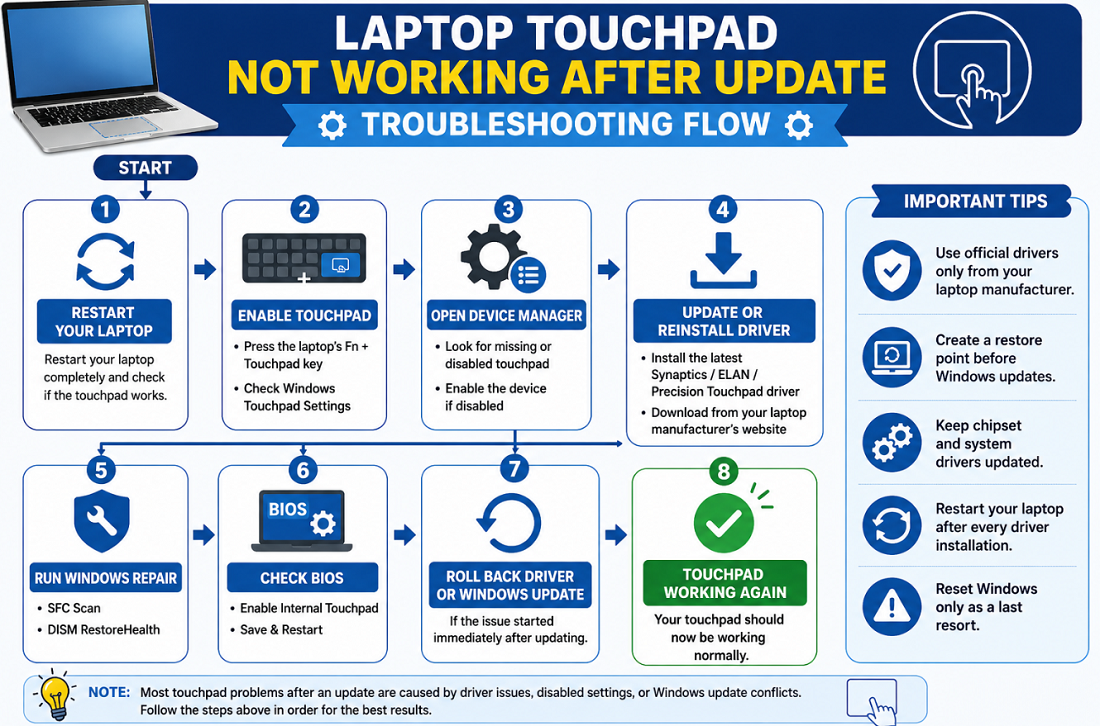
Fix 1 – Restart Your Laptop
It sounds simple, but a complete restart often reloads hardware services that didn’t initialize correctly after the update.
Instead of selecting Restart, try this:
- Shut down the laptop completely.
- Wait about 30 seconds.
- Turn it back on.
This forces Windows to reload hardware drivers from scratch.
Fix 2 – Make Sure the Touchpad Isn’t Disabled
Many laptops include a keyboard shortcut that disables the touchpad accidentally during updates.
Look for a function key with a touchpad icon.
Examples include:
- ASUS: Fn + F9
- HP: Fn + F5
- Dell: varies by model
- Lenovo: Fn + F6
- Acer: Fn + F7
If you’re experiencing Laptop Touchpad Stopped Working After Update, this quick check can save a lot of unnecessary troubleshooting.
Fix 3 – Enable the Touchpad in Windows Settings
Sometimes Windows silently disables the touchpad after a feature update.
Follow these steps:
- Open Settings.
- Go to Bluetooth & devices.
- Select Touchpad.
- Turn the touchpad ON.
If you notice Touchpad Settings Missing Windows 11, Windows may not recognize the installed driver, and you’ll need to reinstall it in the next step.
Fix 4 – Check Device Manager
One of the most reliable ways to diagnose Fix Laptop Touchpad Driver Issues is through Device Manager.
- Press Windows + X.
- Select Device Manager.
- Expand Human Interface Devices.
- Expand Mice and other pointing devices.
Look for:
- Warning icons
- Unknown devices
- Missing touchpad entries
- Disabled devices
If your touchpad appears with a downward arrow, right-click it and choose Enable Device.
If it’s missing entirely, you’re likely dealing with a Touchpad Driver Missing After Update or Human Interface Device touchpad fix situation.
Fix 5 – Update or Reinstall the Touchpad Driver
Driver problems account for the majority of Laptop Touchpad Not Working After Update cases.
Right-click the touchpad device and choose:
- Update Driver
- Search automatically
If Windows reports that the best driver is already installed but the problem continues, uninstall the driver instead.
After uninstalling:
- Restart the laptop.
- Windows may reinstall a generic driver automatically.
- If not, download the latest driver from your laptop manufacturer’s website.
Whether you’re dealing with ASUS Touchpad Not Working After Update, HP Laptop Touchpad Not Working, Dell Touchpad Not Working After Windows Update, Lenovo Touchpad Not Working Windows 11, or Acer Laptop Touchpad Not Responding, always use the driver provided for your exact laptop model whenever possible. Manufacturer-specific drivers usually include gesture support and better compatibility than generic Windows drivers.
Fix 6 – Roll Back the Touchpad Driver
If your touchpad stopped working immediately after a Windows update, the newly installed driver may not be compatible with your laptop. Rolling back to the previous version often restores normal functionality.
Follow these steps:
- Open Device Manager.
- Expand Mice and other pointing devices.
- Right-click your touchpad device.
- Select Properties.
- Open the Driver tab.
- Click Roll Back Driver if the option is available.
This solution works especially well when Windows Update broke touchpad functionality after a recent feature update.
Fix 7 – Install the Manufacturer’s Official Driver
Windows Update doesn’t always install the correct driver. In many cases, it replaces the manufacturer’s driver with a generic one, causing compatibility issues.
Visit your laptop manufacturer’s support page and download the latest touchpad driver for your exact model.
Common drivers include:
- Synaptics Touchpad Not Working → Install the latest Synaptics driver.
- ELAN Touchpad Driver Not Working → Download the newest ELAN package.
- Microsoft Precision Touchpad driver (if supported).
Avoid downloading drivers from unofficial websites. The manufacturer’s driver usually includes gesture support, better palm rejection, and improved stability.
Touchpad Driver Troubleshooting Guide
| Driver Type | Common Problem | Recommended Solution |
|---|---|---|
| Synaptics | Cursor freezes | Install latest Synaptics driver |
| ELAN | Gestures unavailable | Update ELAN driver |
| Precision Touchpad | Scroll not working | Install OEM driver package |
| HID Driver | Device missing | Update Human Interface Device |
| I2C HID Device | Device not detected | Reinstall chipset & I2C drivers |
| Generic Windows Driver | Limited features | Replace with manufacturer driver |
Fix 8 – Check BIOS Touchpad Settings
Some BIOS updates reset hardware settings without notifying you.
If Windows still doesn’t detect the touchpad, enter your laptop’s BIOS or UEFI setup.
Look for options such as:
- Internal Pointing Device
- Touchpad
- Advanced Input Devices
Ensure the touchpad is enabled before saving the changes.
If the touchpad works after enabling it in BIOS, Windows should recognize it during the next startup.
Fix 9 – Resolve I2C HID Device Issues
Modern laptops communicate with the touchpad through the I2C HID Device interface. If this driver becomes corrupted, Windows may report that the Internal touchpad not detected.
To fix this:
- Open Device Manager.
- Expand Human Interface Devices.
- Locate I2C HID Device.
- Right-click and choose Update Driver.
- If that doesn’t help, uninstall it and restart your laptop.
Many users searching for a Human Interface Device touchpad fix find that reinstalling the I2C driver restores normal operation.
Fix 10 – Repair Corrupted Windows Files
System files can become damaged during interrupted updates.
Open Command Prompt as Administrator and run:
sfc /scannowOnce completed, run:
DISM /Online /Cleanup-Image /RestoreHealthThese built-in Windows tools repair corrupted operating system files without affecting your personal data.
Fix 11 – Roll Back the Windows Update
If everything worked perfectly before the update, removing it may be the quickest solution.
Go to:
Settings → Windows Update → Update History → Uninstall Updates
Choose the most recent update and restart your computer.
This is one of the most effective solutions when dealing with Touchpad Not Working After Windows Update or other Windows 11 input device issues.
Warning: Before uninstalling updates, back up important files. Security updates often contain important vulnerability fixes, so only roll back when necessary.
Fix 12 – Perform a Clean Driver Installation
Sometimes updating isn’t enough because remnants of the old driver remain.
For a clean installation:
- Uninstall the touchpad driver.
- Check the option to remove driver software if prompted.
- Restart Windows.
- Install the latest driver downloaded from the laptop manufacturer.
- Restart once again.
This method is particularly effective if you’re trying to Reinstall Touchpad Driver Windows 11 after multiple failed updates.
Advanced Laptop Touchpad Troubleshooting
If none of the previous fixes work, it’s time to investigate further.
Consider checking:
- Windows Event Viewer for driver errors.
- Chipset driver updates.
- Intel Serial IO drivers.
- AMD chipset software.
- BIOS firmware updates.
- Hardware diagnostics provided by your laptop manufacturer.
Also test the touchpad in Safe Mode. If it works there, a third-party application or recently installed software may be causing the conflict.
When Should You Reset or Reinstall Windows?
A complete Windows reset should only be your last option.
Consider it when:
- Every driver reinstall fails.
- Device Manager cannot detect the touchpad.
- Multiple hardware components stopped working after the update.
- System files remain corrupted even after running SFC and DISM.
- Windows has become unstable overall.
Choose Reset this PC while keeping your personal files whenever possible.
A clean installation is recommended only if the operating system has severe corruption.
Prevention Tips
Although Windows updates are important, a few simple habits can prevent future touchpad issues.
- Create a restore point before installing major Windows updates.
- Download touchpad drivers directly from your laptop manufacturer’s website.
- Keep chipset drivers updated alongside touchpad drivers.
- Avoid interrupting Windows updates.
- Back up important files before installing feature updates.
- Periodically check for BIOS updates if recommended by your laptop manufacturer.
These small precautions can save hours of troubleshooting later.
How To Fix Game Controller Not Working On PC
Quick Summary
If your Laptop Touchpad Not Working After Update, don’t assume the hardware has failed. In most cases, the problem is caused by a driver conflict, disabled settings, or Windows replacing the original touchpad driver.
Start with the simple fixes—restart your laptop, verify the touchpad is enabled, and inspect Device Manager. If that doesn’t work, install the latest manufacturer driver, repair Windows files, or roll back the recent update. Only consider resetting Windows after exhausting all other troubleshooting steps.
With patience and a systematic approach, you can usually restore full touchpad functionality without replacing any hardware.
Frequently Asked Questions (FAQ)
1. Why did my laptop touchpad stop working after a Windows update?
Windows updates sometimes replace or corrupt touchpad drivers, disable the device, or introduce compatibility issues with existing hardware.
2. How do I enable my touchpad again?
Open Settings → Bluetooth & devices → Touchpad and make sure the touchpad is turned on. Also check your laptop’s function key shortcut.
3. Should I reinstall the touchpad driver?
Yes. If the driver is corrupted or missing, reinstalling the latest driver from your laptop manufacturer’s website is often the best solution.
4. Why does an external mouse work but the touchpad doesn’t?
This usually indicates that Windows is running correctly, but the touchpad driver is missing, disabled, or incompatible.
5. Can a BIOS update affect the touchpad?
Yes. Some BIOS updates reset BIOS touchpad settings, disabling the internal pointing device until it’s re-enabled.
6. Should I uninstall the latest Windows update?
If the touchpad stopped working immediately after installing the update and other fixes haven’t worked, rolling back the update is a reasonable troubleshooting step.
7. Can corrupted system files cause touchpad issues?
Yes. Damaged Windows system files can interfere with hardware detection. Running SFC and DISM scans often resolves these problems.
8. Is a broken touchpad always a hardware problem?
No. Most cases are software-related and can be resolved by updating drivers, changing settings, or repairing Windows rather than replacing the touchpad itself.
Laptop Bios Password Generator