How To Integrate AI Tools Into WordPress. Managing a WordPress website involves more than publishing articles. You also need to optimize content for search engines, create images, respond to visitors, maintain website security, and handle repetitive tasks. Doing everything manually can take hours, especially when you run a blog or manage several websites.
This is where artificial intelligence can help. Learning How to Integrate AI Tools into WordPress allows you to automate routine work, improve your content workflow, and make website management more efficient without rebuilding your website from scratch.
The good news is that you do not need advanced programming skills to get started. You can connect AI services through plugins, external applications, or APIs, depending on your requirements. The key is choosing tools that solve real problems rather than installing every new AI plugin you find.
What Does AI Integration in WordPress Mean?
AI integration means connecting artificial intelligence services to your WordPress website so they can perform specific tasks. These may include generating article outlines, suggesting SEO improvements, answering visitor questions, creating images, or automating repetitive workflows.
For example, an AI writing assistant can help prepare a draft, while an SEO plugin can identify optimization opportunities. An AI chatbot can answer common questions without requiring you to respond to every visitor manually.
The benefits of AI integration in WordPress include faster workflows, improved consistency, better customer support, and more efficient content production. However, AI-generated information still needs human review for accuracy, originality, and usefulness.
Best AI Plugins for WordPress and Their Uses
Choosing the right tools is the first step. The Best AI Plugins for WordPress depend on what you want to accomplish, your budget, and how much control you need.
Here is a practical comparison of common AI integration options.
| AI tool or service | Main purpose | Best use case |
|---|---|---|
| Jetpack AI Assistant | Writing and editing assistance | Drafting and improving content |
| AI Engine | AI-powered website features | Chatbots and custom AI workflows |
| Rank Math SEO | SEO analysis and AI-assisted features | On-page optimization |
| Elementor AI | AI-assisted website building | Creating and refining page content |
| Uncanny Automator | Workflow automation with supported integrations | Connecting website tasks and external services |
| OpenAI API | Custom AI functionality | Developers building tailored integrations |
Features, pricing, and integrations can change. Check each product’s current documentation before installing it.
These tools serve different purposes. Some are full WordPress plugins, while others offer AI capabilities through integrations or external services. For example, the OpenAI API is not itself a WordPress plugin; you need a compatible integration or custom code to connect it.
How To Integrate AI Tools Into WordPress Step by Step
If you are wondering How to Add AI to WordPress, start with one task and expand gradually. This makes troubleshooting easier and helps you understand whether the integration is actually useful.
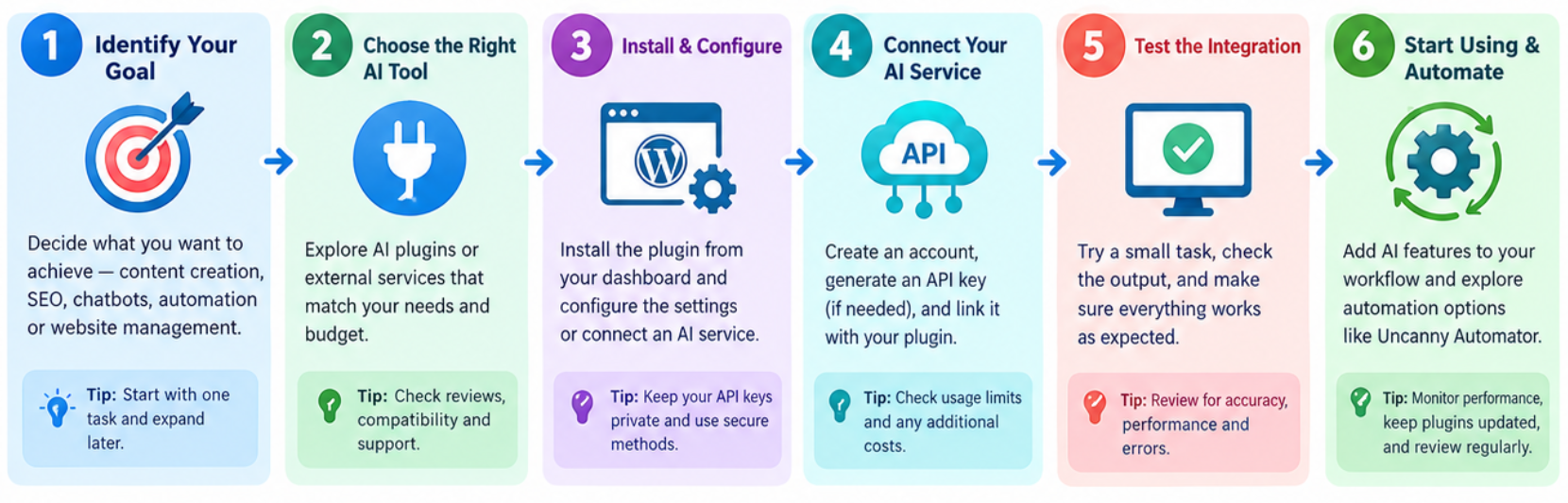
Step 1: Identify the Task You Want to Automate
Before installing anything, decide what is slowing you down.
Do you spend too much time preparing article outlines? Are you struggling with SEO optimization? Would an automated chatbot help answer repetitive customer questions?
Write down your main goal and select a tool designed for that purpose. A content-focused website may benefit from writing assistance, whereas an online store might gain more from customer support automation.
Step 2: Choose a Compatible AI Plugin
Open your WordPress dashboard and navigate to Plugins → Add New Plugin. Search for the plugin you want to use, review its features, and check its compatibility with your WordPress version.
Before installing it, examine the developer’s reputation, update history, support information, and required permissions.
Install only what you need. Several overlapping plugins can create unnecessary complexity, slow down your dashboard, or introduce compatibility problems.
Step 3: Install and Configure the Plugin
Click Install and then Activate. Depending on the plugin, you may need to create an account, connect an external AI service, or enter an API key.
Follow the provider’s official setup instructions rather than copying configuration settings from an unrelated tutorial.
Important security tip: Never publish an API key in an article, page, public JavaScript file, or screenshot. Use the plugin’s secure configuration process or store credentials in an appropriate server-side environment.
Step 4: Connect Your AI Service
Some WordPress AI tools work immediately after activation. Others require a connection to an external service such as an AI model provider.
For a typical API integration, the process involves creating an account with the provider, generating an API key, entering it into the supported integration, and testing a simple request.
Check usage limits and billing before enabling the service. Depending on the provider and model, API usage may incur separate charges even when the WordPress plugin is free.
Step 5: Test the Integration
Start with a small, low-risk task. For example, ask an AI writing tool to create an outline for a draft article or use a chatbot to answer a frequently asked question.
Check the output for accuracy, formatting, response time, and unexpected costs. If everything works as intended, gradually introduce the feature into your normal workflow.
Three Practical Ways to Use AI in WordPress
Once your integration is working, you can apply AI to several areas of your website.
1. AI Content Creation and Editing
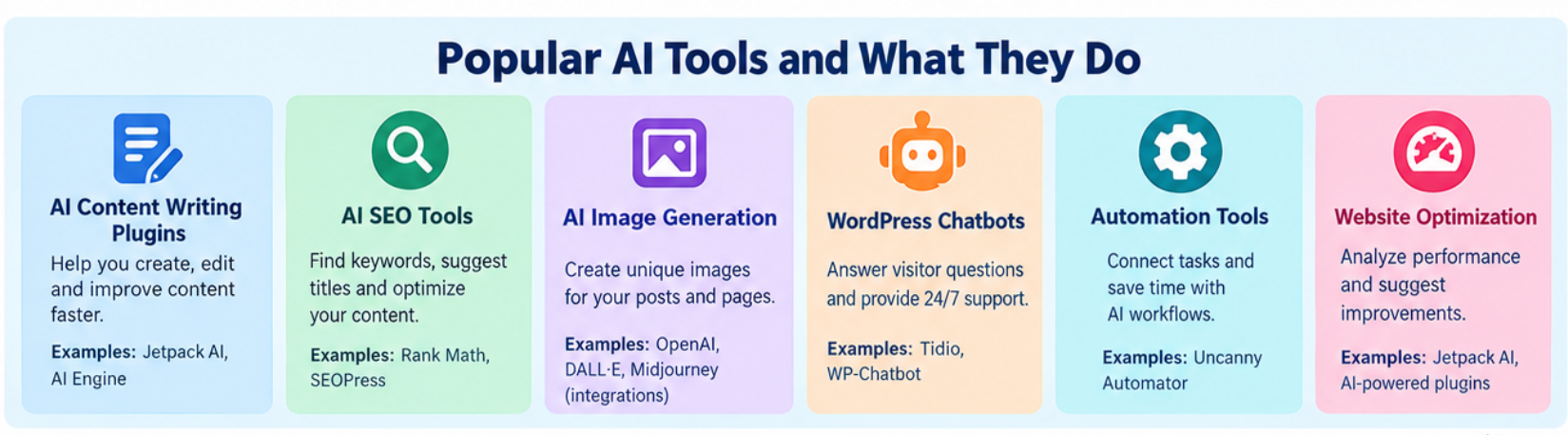
AI Content Writing Plugins for WordPress can help generate outlines, improve grammar, suggest headings, summarize information, and develop first drafts.
For a technology blog, you might use AI to organize a troubleshooting guide into symptoms, possible causes, and solutions. You should then verify every technical instruction before publishing it.
AI can accelerate writing, but it should not replace first-hand testing, useful examples, or editorial judgment.
2. AI SEO and Website Optimization
AI SEO Tools for WordPress can assist with keyword research, title suggestions, content structure, and related search queries. Some tools also help identify missing subtopics or improve readability.
Use these suggestions alongside established SEO practices, including descriptive titles, helpful internal links, appropriate image alt text, and clear page structure.
AI-Powered WordPress Website Optimization should also include performance checks. AI features do not automatically make a website faster. Heavy scripts, excessive plugin requests, and external API calls may actually affect performance.
3. Chatbots and Customer Support
WordPress AI Chatbot Integration can help visitors find information, understand your services, or locate relevant articles.
A useful chatbot should draw on reliable website content and clearly acknowledge when it cannot answer a question. For complicated issues, provide a way to contact a real person.
Avoid sending private customer information to an AI service unless the integration, privacy arrangements, and applicable permissions support that use.
How to Build AI Workflows Without Coding
Comparison Table: Plugin vs API vs External AI Tool
There are three common approaches to adding AI functionality. The right option depends on your technical skills and the level of customization you need.
| Integration method | Advantages | Limitations |
|---|---|---|
| WordPress AI plugin | Easy setup and dashboard controls | Features depend on the plugin |
| AI API integration | Flexible and customizable | Requires configuration and ongoing maintenance |
| External AI application | Minimal changes to WordPress | May require manual copying or separate workflows |
For most beginners, a reputable plugin is the simplest starting point. Developers who need custom features can explore Integrating AI APIs into WordPress, while external applications can be useful when a direct website integration is unnecessary.
Best Web Hosting for Tech Blogs With Free SSL
How to Automate WordPress with AI
WordPress AI Workflow Automation connects AI capabilities with other tasks, reducing repetitive manual work.
For example, a content workflow might look like this:
- Create an article draft in WordPress.
- Send selected text to an AI service for editing suggestions.
- Review the suggested changes manually.
- Run SEO checks and add relevant internal links.
- Publish the article only after editorial approval.
Tools such as Uncanny Automator can connect supported WordPress events with other services. However, the exact workflow depends on available integrations, subscription requirements, and plugin compatibility.
The same principle applies to AI Tools for WordPress SEO Optimization: automate repetitive checks where possible, but retain human control over important publishing decisions.
Troubleshooting Common AI Integration Problems
AI features do not always work perfectly on the first attempt. Use the table below to identify likely causes before making major changes.
| Problem | Possible cause | Recommended solution |
|---|---|---|
| API connection fails | Invalid key or account limits | Verify credentials, account status, and usage limits |
| AI output does not appear | JavaScript error or plugin conflict | Check browser errors and test plugins individually |
| Website becomes slower | Heavy scripts or frequent API requests | Measure performance and reduce unnecessary requests |
| Unexpected API charges | Excessive usage or repeated requests | Set usage limits and monitor billing |
| Chatbot gives incorrect answers | Weak or outdated source content | Improve its knowledge sources and test common questions |
If a problem starts immediately after installing a plugin, check its documentation and compatibility requirements. Back up your website before disabling plugins or changing production settings.
How to Make a Custom AI Chatbot Without Coding
Technical SEO, Privacy, and Security Considerations
A successful AI integration should improve your workflow without damaging website performance or visitor trust.
- Protect API credentials: Keep secret keys server-side and restrict access wherever possible.
- Monitor performance: Test important pages before and after adding AI features.
- Review privacy practices: Understand what information the provider receives, how it is processed, and whether it is retained.
- Avoid automatic publishing without review: AI may produce incorrect facts, fabricated references, or misleading technical advice.
- Check accessibility: Ensure AI-powered widgets work with keyboards, screen readers, and mobile layouts.
- Maintain plugin updates: Use trusted developers and remove integrations you no longer need.
For technical blogs, accuracy deserves particular attention. Incorrect BIOS instructions, unsafe troubleshooting steps, or unverified security advice can cause real problems for readers. Treat AI output as a draft that requires verification.
Frequently Asked Questions
1. Can I use ChatGPT with WordPress?
Yes. ChatGPT Integration with WordPress is possible through compatible plugins, third-party services, or custom API integrations. The available features depend on the integration you choose.
2. Do I need coding skills to add AI to WordPress?
No. Many plugins offer dashboard-based setup. Custom API integrations may require programming knowledge, especially when you need specialized functionality or server-side controls.
3. Are WordPress AI plugins free?
Some offer free plans or limited features, while others require subscriptions. External AI services may also charge separately for API usage.
4. Can AI automatically write and publish WordPress articles?
Some workflows can generate and publish content automatically, but automatic publication carries accuracy and quality risks. A human review step is recommended, particularly for technical or sensitive topics.
5. Which AI tools are useful for WordPress SEO?
SEO plugins with AI-assisted features can help with content analysis, titles, and optimization suggestions. Use them alongside keyword research, Search Console data, and sound technical SEO practices.
6. Can AI improve WordPress website speed?
AI does not inherently improve speed. It may help analyze performance or support optimization workflows, but poorly configured integrations can add scripts and server requests.
7. How can I add an AI chatbot to my WordPress website?
Install a reputable chatbot plugin or connect a compatible service, configure its knowledge sources, and test its responses. Make sure it can handle unanswered questions appropriately and respects visitor privacy.
8. Is integrating AI into WordPress safe?
It can be safe when you use trusted tools, protect credentials, review permissions, maintain backups, and understand how data is processed. Security also depends on the specific plugin and its configuration.
How To Start A Tech Blog And Make Money
Conclusion
Learning How to Integrate AI Tools into WordPress can make website management more efficient, from writing and SEO to customer support and workflow automation. You do not need to automate everything at once. Start with one clear problem, choose a compatible tool, and test the results before expanding.
For a content-focused website, a sensible first step is to combine AI-assisted drafting with reliable SEO checks and human editing. As your needs grow, you can explore chatbots, image generation, and custom API integrations.
Ultimately, the best AI setup is not the one with the most plugins. It is the one that saves time, protects your website, and helps you publish accurate, genuinely useful content for your readers.