How To Fix No Boot Device Found Error. Booting your computer should be as simple as pressing the power button. However, sometimes you’re met with a dreaded black screen that says: “No Boot Device Found” or “No bootable device error.” This issue can prevent your system from starting Windows, making it a major headache for both casual and professional users.
Selected Boot Image Did Not Authenticate Error
In this detailed guide, we’ll explain the causes behind the No Boot Device Found Error, show you how to fix it using BIOS settings, Windows repair tools, and other troubleshooting methods, and provide tables that summarize the fixes for quick reference. By the end, you’ll know exactly how to fix no boot device not found in Windows 10/11 without unnecessary stress.
What Does the “No Boot Device Found Error” Mean?
When your PC displays the No Boot Device Found Error, it means the system cannot locate a device (HDD, SSD, or USB) that contains the bootable operating system files needed to start Windows.
This can happen due to:
◉Incorrect boot order settings in BIOS
◉A faulty hard drive or SSD
◉Loose or damaged disk connections
◉Corrupted boot sector or MBR
◉BIOS or UEFI misconfiguration
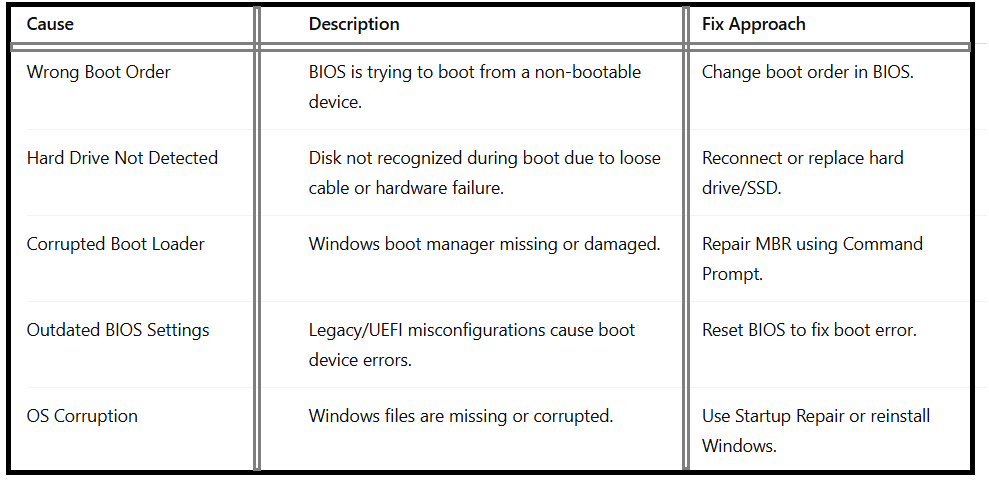
Common Causes of the No Bootable Device Error:
Here are some typical reasons behind this error:
How To Fix No Boot Device Found Error (Step-by-Step)
Method 1 – Check Physical Connections:
Before diving into software fixes, confirm that your hard drive or SSD is properly connected. Loose SATA or NVMe cables can cause the disk not to be recognized during boot problem.
1.Power off the computer.
2.Open the back panel (for laptops) or case (for desktops).
3.Ensure the HDD/SSD is firmly seated.
4.Restart the system.
Method 2 – Change Boot Order in BIOS:
Often, the system tries to boot from the wrong device. To fix no boot device found error, you must check your BIOS boot priority.
Steps to Change Boot Order in BIOS:
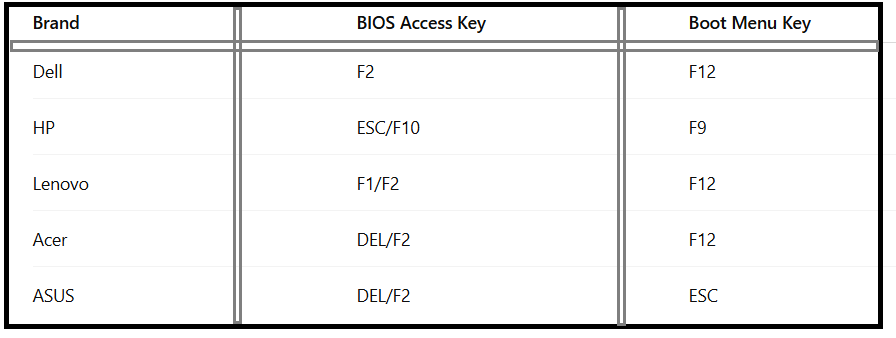
1.Restart your PC and press the BIOS key (F2, F10, ESC, DEL – varies by brand).
2.Navigate to Boot Options.
3.Ensure your main hard drive or SSD is set as the first boot device.
4.Save changes and exit.
BIOS Access Keys For Different Laptops:
This is one of the simplest ways on how to resolve no boot device found issues.
Method 3 – Reset BIOS to Fix Boot Error:
If your BIOS settings are misconfigured, resetting them can help.
1.Enter BIOS.
2.Look for Load Default Settings or Restore Factory Settings.
3.Save and restart.
This method is especially helpful for those who upgraded from Legacy BIOS to UEFI and are facing the no bootable devices problem.
Method 4 – Run Windows Startup Repair:
If the issue lies in corrupted system files, use Windows recovery tools:
1.Insert a bootable USB with Windows 10/11.
2.Boot from it.
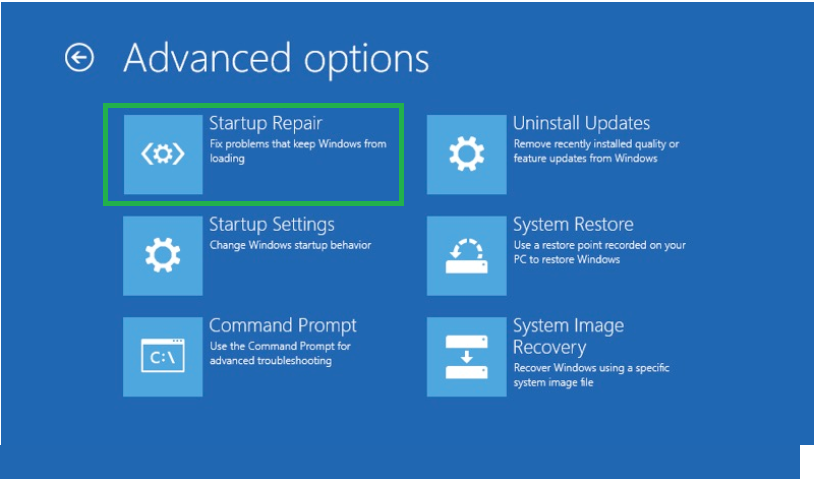
3.Select Repair Your Computer → Troubleshoot → Advanced Options→ Startup Repair.
4.This tool can fix missing boot configuration files without reinstalling the OS.
Method 5 – Fix Boot Device Error Without Reinstalling OS (Using Command Prompt)
If Startup Repair fails, you can fix the boot loader manually.
Steps:
1.Boot into Windows Recovery Environment. Do it by holding the Shift key while selecting Restart from the Start menu’s power options.
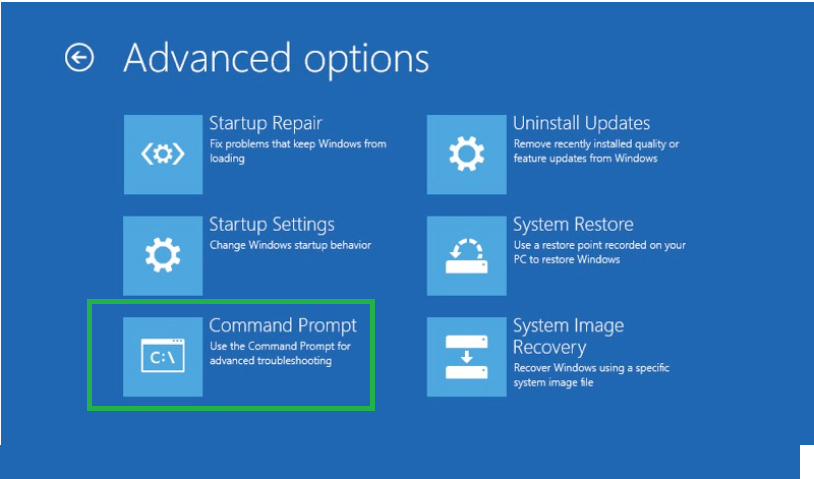
2.Select Repair Your Computer → Troubleshoot → Advanced Options
3.Select Command Prompt.
4.Run the following commands:
bootrec /fixmbr
bootrec /fixboot
bootrec /scanos
bootrec /rebuildbcd
These commands repair the MBR (Master Boot Record) and rebuild boot configuration data, often resolving the no boot device with command prompt error.
Method 6 – Run Disk Check:
Sometimes the disk is not recognized during boot due to bad sectors.
From Command Prompt, run:
chkdsk C: /f /r
This scans and fixes disk-related issues that may cause troubleshooting boot device error messages.
Method 7 – Reinstall Windows (Last Resort)
If nothing works, you may need to reinstall Windows. Ensure you back up data (if possible) using an external drive or live USB before proceeding.
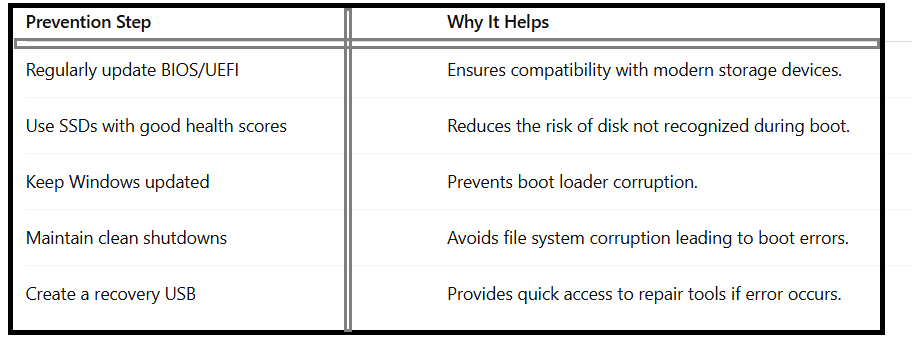
Preventing Future Boot Device Errors
FAQ – Fix No Boot Device Found Error:
Q1.What does “No Boot Device Found Error” mean?
It means your PC can’t locate a drive containing the operating system, which is often caused by BIOS misconfiguration, corrupted boot files, or faulty drives.
Q2.How do I fix no boot device found in Windows 10/11 quickly?
The fastest fix is to check the BIOS boot order and ensure your system boots from the correct drive.
Q3.Can I fix the error without reinstalling Windows?
Yes. You can use Startup Repair, reset BIOS, or run bootrec commands in Command Prompt.
Q4.Why does my laptop say “no bootable devices”?
This usually happens due to hard drive not detected in BIOS or a corrupted boot sector.
Q5.What if my hard drive is not showing up in BIOS?
If the disk is not recognized during boot, check physical connections. If still missing, the drive might be dead and require replacement.
Final Thoughts:
The No Boot Device Found Error may look intimidating, but most of the time it’s fixable through simple steps like changing the boot order in BIOS, running Startup Repair, or repairing the boot loader. By following the troubleshooting methods above, you can fix and get your computer running again.
For long-term stability, keep your BIOS updated, maintain disk health, and always create a Windows recovery USB for emergencies.