Windows 10 Hotspot Is Not Working. In this article, you will read how to fix the Windows 10 hotspot not working issue. Wireless Internet connection is a great innovation in the world of the Internet. There is no need to use Ethernet cables to get connected to the internet. Just buy a router or modem to have an internet connection via Wi-Fi.
Windows 10 has a feature to access wireless internet. You can use the Windows 10 hotspot settings to use the laptop as a router in Windows 10. Read the article to know how you can enable the Windows 10 Wi-Fi hotspot and turn your desktop or laptop into a router.
But, sometimes many users reported that whenever they try to enable the hotspot, they have faced the error ‘We can’t set up a mobile hotspot. Turn on Wi-Fi’ or other similar error. To fix this issue, I have troubleshooted some methods.
How To Fix Windows 10 Hotspot Is Not Working Issue?
Method 1 – Check Your Internet Connection:
The first thing to check is your internet connection. If your internet is not working, then you cannot enable the hotspot. Having a good internet connection is the first requirement for enabling the hotspot.
Conduct a speed test to check the connection speed of your internet. If the internet is connecting to the internet then call the internet service provider to have a look at this issue.
Method 2 – Run Internet Connections Troubleshooter:
Try Internet Connections troubleshooter in Windows 10. It is an inbuilt utility provided by Windows to solve these types of issues. Windows will automatically fix the problem when you run it. To run the Internet Connection troubleshooter:
1.Type Troubleshoot Settings in the search bar.
2.Select the top option.
3.Next, select the Additional Troubleshooters option.
4.Click on the Internet Connections option.
5.Select the Run the troubleshooter option.

Method 3 – Enable Network Sharing:
Check if the network sharing feature is enabled or disabled. Sometimes installing new software or updating Windows can change the settings of your PC and can make this feature disabled. To enable the Network Sharing:
1.Open the Mobile Hotspot settings again.
2.Click on Change adapter options in the Related Settings section.
3.Locate the Mobile hotspot adapted.
4.Right-click on it.
5.Select the Properties option from the pop-up menu.
6.Click on the Sharing tab.
7.Check the Allow other network users to connect through this computer’s internet connection box.
8.Follow the instructions to complete the process.
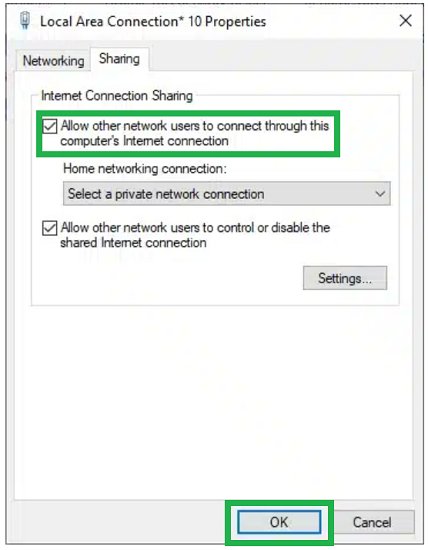
9.Select OK to save the changes.