How to Unlock BitLocker Without Password. BitLocker is one of the most powerful drive encryption tools built into Windows. It provides robust protection against unauthorized access to your files and ensures your data stays safe. However, forgetting your BitLocker password can be frustrating, especially when you need immediate access to your files. Many users ask the same question: how to unlock BitLocker without password?
Fix Windows Installation Failed in Safe OS Phase
Fortunately, there are several ways to access a BitLocker-encrypted drive if you don’t remember the password. In this guide, we will explore BitLocker recovery key methods, password reset options, and different ways to bypass BitLocker encryption safely without losing data.
What is BitLocker Encryption?
BitLocker is a Windows feature that encrypts entire drives, including USB flash drives, system drives, and external hard disks. Once a drive is protected, it requires either a password, recovery key, or TPM chip authentication to unlock.
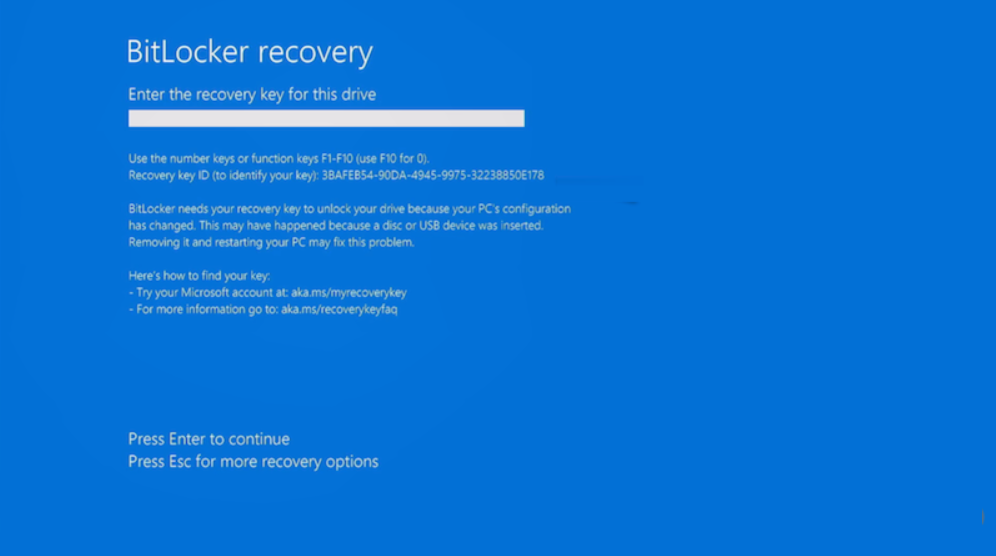
Why BitLocker Is Important:
-Protects sensitive data from unauthorized access.
-Ensures security if a laptop or hard drive is lost or stolen.
-Works seamlessly with Windows security ecosystem.
But if you forget the password or recovery key, accessing your files can become a challenge. That’s when learning how to unlock BitLocker without a password becomes crucial.
How To Unlock BitLocker Without Password:
1.Use BitLocker Recovery Key Methods:
When BitLocker is first set up, Windows prompts users to save a recovery key. This key can be stored in multiple locations, such as:
-Microsoft account
-USB drive
-File on a computer
-Printed copy
If you forget the password, the recovery key is the most reliable way to regain access.
Steps to use a BitLocker recovery key:
1.Insert the encrypted drive into your computer.
2.When prompted, select “More Options”.
3.Choose “Enter Recovery Key”.
4.Type in the 48-digit recovery key.
5.Access your drive.
If you have lost both the password and recovery key, you will need other options like BitLocker repair tools or disabling encryption.
2.How to Bypass BitLocker Encryption with Command Prompt:
Sometimes, users can attempt to bypass BitLocker encryption by using the Command Prompt (CMD). This method requires either the recovery key or administrative rights.
Steps to unlock BitLocker via CMD:
1.Press Windows + X and select Command Prompt (Admin).
2.Type:
manage-bde -unlock X: -RecoveryPassword YOUR-RECOVERY-KEY
(Replace X with your drive letter.)
3.Hit Enter to unlock.

If you want to remove BitLocker encryption without password, you can also disable it using CMD once unlocked:
manage-bde -off X:
This method allows you to disable BitLocker without password (if you have the recovery key).
3.How to Remove BitLocker Encryption Without Password:
If you don’t want BitLocker protection anymore, you can turn it off once you gain access through the recovery key.
Steps to remove BitLocker:
1.Open Control Panel > System and Security > BitLocker Drive Encryption.
2.Locate your encrypted drive.
3.Select Turn Off BitLocker.
4.Follow the on-screen instructions to decrypt.
This process takes time, depending on your drive size, but it’s a permanent way to remove encryption.
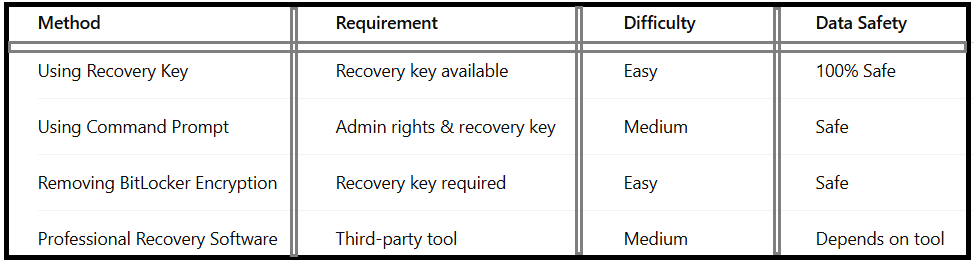
Comparison of BitLocker Unlock Methods:
How to Recover BitLocker Password from Microsoft Account:
If you saved your recovery key with your Microsoft account, you can easily recover it.
Steps:
1.Go to Microsoft BitLocker Recovery Keys
2.Log in with your Microsoft account.
3.Retrieve your recovery key.
4.Use it to unlock your drive.
This is one of the most effective BitLocker recovery key methods for users who linked their accounts.
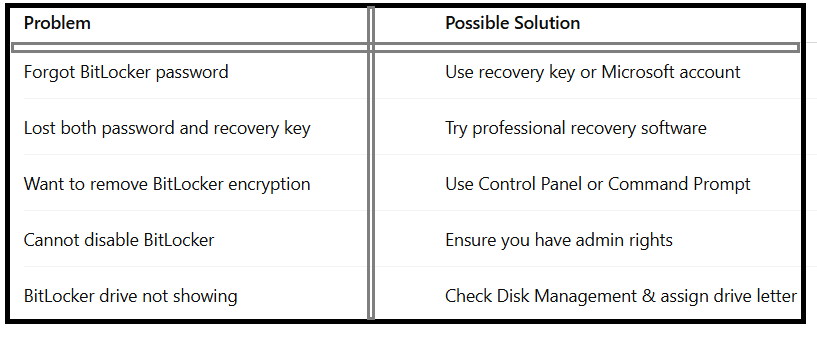
Common BitLocker Issues and Solutions:
Professional BitLocker Recovery Tools:
If you have lost both your password and recovery key, professional recovery software may be the last option. Tools like M3 BitLocker Recovery or iBoysoft Data Recovery claim to help in such situations. However, keep in mind:
-Success is not guaranteed.
-Always use trusted tools.
-Data safety depends on software reliability.
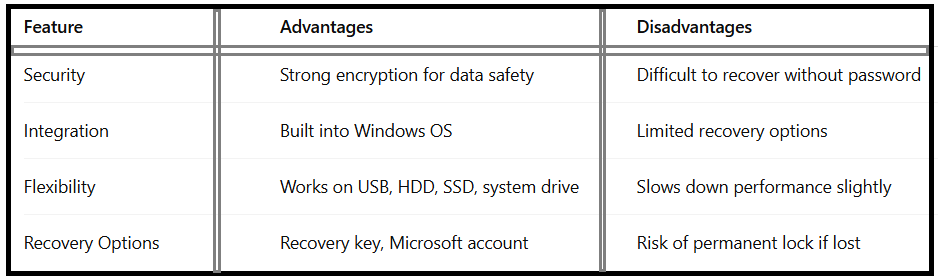
Advantages and Disadvantages of BitLocker:
Conclusion:
Forgetting a password can feel like being locked out of your own data, but Windows provides multiple options to unlock BitLocker without a password. The most reliable method is using a recovery key stored in your Microsoft account, USB, or printed document. If unavailable, you can try Command Prompt, password reset options, or recovery software.
While BitLocker ensures your data remains secure, it also highlights the importance of storing recovery keys safely. By following these methods, you can access your encrypted drive without losing valuable files.
FAQ – How to Unlock BitLocker Without Password:
Q1:Can I unlock BitLocker without a recovery key?
No, without either a password or recovery key, accessing BitLocker-encrypted data is nearly impossible due to strong encryption.
Q2:How do I remove BitLocker permanently?
Go to Control Panel > BitLocker Drive Encryption > Turn Off BitLocker and follow the instructions.
Q3:Is there free software to unlock BitLocker?
Some tools exist, but most are paid and success rates vary. It’s safer to use Microsoft’s official recovery options.
Q4:Can I disable BitLocker without password?
Yes, if you have the recovery key, you can disable encryption using Command Prompt or Control Panel.
Q5:How do I recover BitLocker password in Windows?
You can retrieve the recovery key from your Microsoft account, USB drive, or file where it was saved.