BIOS Recovery Methods – A Complete Guide to Restore a Corrupted BIOS Safely. A failed BIOS update can turn a perfectly working computer into a machine that refuses to boot. One moment everything is running normally, and the next you’re staring at a black screen with no logo, no beep, and no response. It can feel like the motherboard has completely died—but in many cases, that’s not true.
Fortunately, several BIOS Recovery Methods can restore corrupted firmware without replacing the motherboard. Whether the problem occurred after a power outage, an interrupted firmware update, or a damaged BIOS chip, modern laptops and motherboards often include built-in recovery features designed for exactly these situations.
In this guide, you’ll learn how to recover a corrupted BIOS using practical techniques that work on both laptops and desktop computers. We’ll cover beginner-friendly solutions first before moving on to advanced recovery options used by repair technicians. If you’re willing to work carefully and follow the correct steps, there’s a good chance you can bring your system back to life.
Quick Answer (Featured Snippet):
BIOS Recovery Methods are procedures used to restore firmware after BIOS corruption or a failed update. Common methods include using a BIOS Recovery USB, BIOS Flashback, manufacturer recovery tools, Boot Block Recovery, Dual BIOS features, or an SPI programmer when software recovery is no longer possible.
What Are BIOS Recovery Methods?
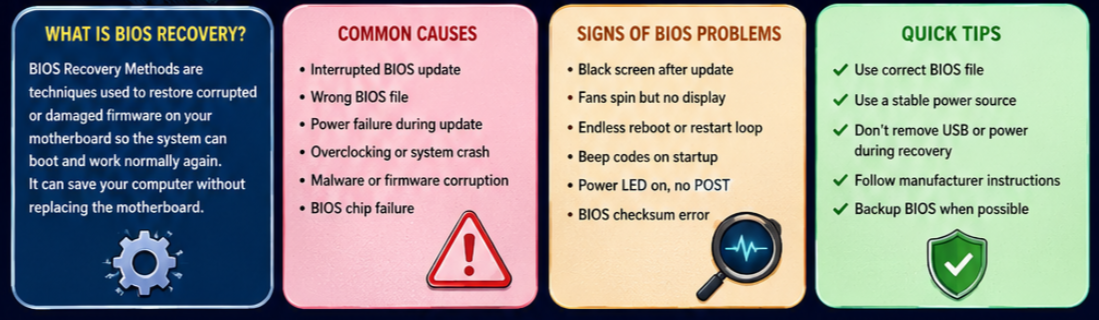
Simply put, BIOS Recovery Methods are techniques used to restore the firmware stored on your motherboard when it becomes damaged or corrupted.
The BIOS—or, on newer systems, UEFI firmware—is responsible for initializing hardware before Windows starts. If this firmware becomes corrupted, the processor may never reach the boot stage. As a result, the computer can remain stuck on a black screen, repeatedly restart, or fail to display anything at all.
Instead of replacing the motherboard immediately, manufacturers often provide a built-in BIOS Recovery Utility or BIOS Recovery Mode that allows the firmware to be restored from a USB flash drive or a hidden recovery partition.
Depending on your device, you may also find dedicated recovery technologies such as:
- BIOS Flashback on many ASUS and MSI motherboards
- HP Emergency BIOS Recovery
- Dell BIOS Recovery
- Lenovo BIOS Recovery
- Gigabyte Dual BIOS
- Acer Crisis Recovery Mode
These tools make BIOS Firmware Recovery much easier than it was a decade ago.
Why BIOS Corruption Happens
Many people assume BIOS corruption is rare. In reality, it’s one of the most common firmware issues encountered during motherboard diagnostics, especially after updates.
Here are the most frequent causes.
1. Interrupted BIOS Update
This is the leading cause of BIOS corruption.
If the computer loses power while flashing new firmware, the BIOS image may become incomplete. Without valid firmware, the motherboard cannot complete POST (Power-On Self-Test), making BIOS Recovery After Failed Update necessary.
2. Wrong BIOS File
Every motherboard model requires a specific firmware version.
Installing BIOS designed for another motherboard—even one with a similar model number—can overwrite the existing firmware with incompatible code.
Always verify the motherboard model before beginning any BIOS Restore Process.
3. Power Failure During Flashing
Firmware updates write directly to the BIOS chip.
A sudden power interruption while writing data may corrupt critical firmware blocks, leaving the system unable to boot.
For desktop computers, using a UPS during updates is strongly recommended.
4. Failed Overclocking
Aggressive CPU or memory overclocking can sometimes damage BIOS settings or prevent successful initialization.
Although a CMOS reset often fixes configuration problems, severe corruption may require a complete Motherboard BIOS Recovery procedure.
5. Malware or Firmware Modification
While uncommon, certain advanced malware targets firmware instead of Windows.
These attacks may alter BIOS settings or overwrite portions of the firmware, requiring specialized firmware recovery software or even professional BIOS programming service if recovery utilities cannot repair the damage.
6. BIOS Chip Failure
Like any flash memory device, a BIOS chip can eventually fail due to age, electrical damage, or manufacturing defects.
When this happens, software recovery is often impossible, and BIOS chip replacement or reprogramming with an SPI programmer may be required.
How To Fix Hard Drive Not Showing In BIOS
Signs Your BIOS Needs Recovery
Not every boot problem points to corrupted firmware. However, several symptoms strongly suggest that BIOS Recovery may be necessary.
| Symptom | Possible Cause | Recommended Action |
|---|---|---|
| Black screen after BIOS update | Corrupted firmware | Try BIOS Recovery USB or BIOS Flashback |
| Fans spin but no display | Damaged BIOS image | Enter BIOS Recovery Mode |
| Endless reboot loop | Incomplete firmware update | Perform UEFI BIOS Recovery |
| Beep codes after flashing BIOS | Firmware corruption | Check motherboard manual for recovery procedure |
| Power LED on but no POST | Boot Block damaged | Attempt BIOS Boot Block Recovery |
| BIOS checksum error | Corrupted BIOS settings or firmware | Reset CMOS, then use recovery utility if needed |
How to Confirm It’s Really a BIOS Problem
Before attempting any recovery procedure, rule out simpler hardware faults. A loose RAM module, failed graphics card, or faulty power supply can produce symptoms that closely resemble BIOS corruption.
A quick troubleshooting checklist:
- Reseat the RAM modules.
- Disconnect unnecessary USB devices.
- Clear the CMOS using the jumper or battery.
- Test with a different monitor or graphics output.
- Listen for beep codes or check motherboard diagnostic LEDs.
- Verify that the power supply is functioning correctly.
If these checks don’t restore the system and the issue began immediately after a firmware update, the BIOS is a likely culprit.
Expert Tip: Don’t rush to replace the motherboard. In many cases, built-in recovery features can restore the firmware in just a few minutes, saving both time and money.
How To Update BIOS Safely Without Bricking
BIOS Recovery Methods Explained
Now that you’ve identified the signs of BIOS corruption, it’s time to fix the problem. The good news is that not every corrupted BIOS requires expensive repair equipment. Modern motherboards include several built-in recovery options, and manufacturers continue to improve them with every generation.
Start with the simplest recovery method first. If it doesn’t work, move to the next one instead of jumping straight to hardware programming.
1. BIOS Recovery Using USB Drive
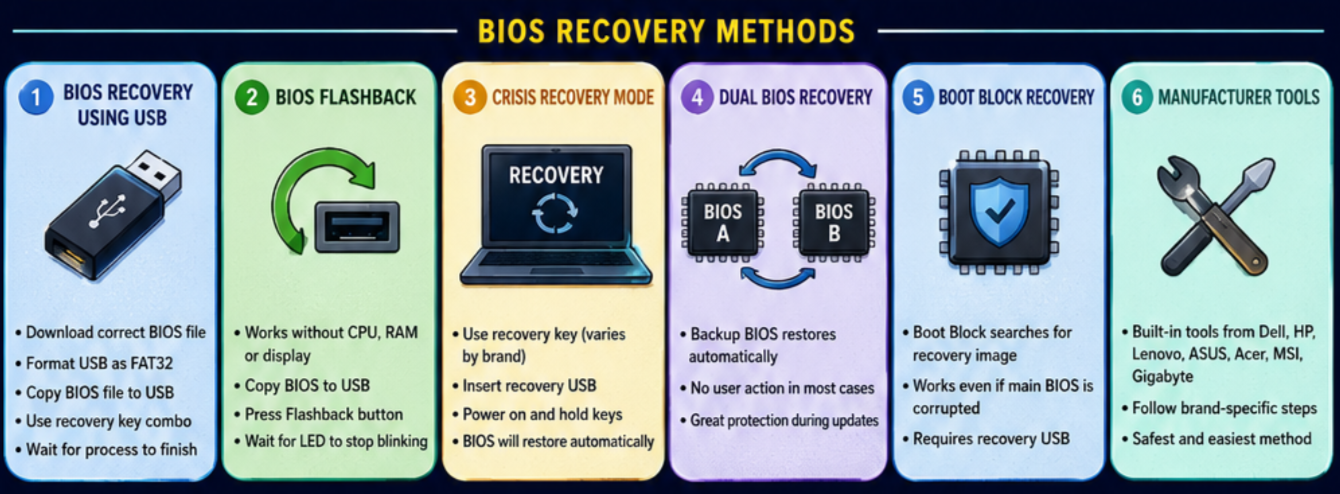
One of the easiest and most reliable BIOS Recovery Methods is using a BIOS Recovery USB. Most modern laptops and desktop motherboards can read a BIOS file directly from a USB flash drive, even when Windows won’t start.
You’ll Need
- A working computer
- A USB flash drive (8–32 GB recommended)
- The correct BIOS file for your exact motherboard model
- Manufacturer recovery instructions
Step-by-Step Guide
- Visit your laptop or motherboard manufacturer’s support page.
- Download the latest BIOS version for your exact model.
- Format the USB drive as FAT32.
- Copy the BIOS file to the USB drive.
- Rename the BIOS file if the manufacturer requires a specific filename.
- Insert the USB drive into the recommended USB port.
- Press the recovery key combination or recovery button while powering on the computer.
- Wait patiently while the firmware is restored.
Some systems automatically detect the recovery image and begin the BIOS Restore Process without displaying anything on the screen.
Warning: Never disconnect the power or remove the USB drive during firmware recovery. Interrupting the process can permanently damage the BIOS chip.
2. BIOS Flashback
One of the best recovery technologies available today is BIOS Flashback.
Unlike traditional BIOS updates, this feature doesn’t require a CPU, RAM, graphics card, or even a display. The motherboard can update or recover its firmware using only standby power.
This feature is commonly found on higher-end ASUS, MSI, Gigabyte, and ASRock motherboards.
How BIOS Flashback Works
- Download the correct BIOS file.
- Rename the file according to the manufacturer’s instructions.
- Copy it to a FAT32 USB drive.
- Plug the drive into the dedicated Flashback USB port.
- Press the BIOS Flashback button for a few seconds.
- Wait until the LED stops blinking.
Once finished, reinstall your components and power on the computer.
Advantages
- Works without booting Windows.
- Doesn’t require installed hardware in many cases.
- Very safe compared to traditional BIOS flashing.
- Excellent for BIOS Recovery After Failed Update.
3. Crisis Recovery Mode
Many laptops include an Emergency BIOS Recovery feature known as Crisis Recovery Mode.
Even if the BIOS becomes corrupted, a small protected section of firmware can still search for a recovery image stored on a USB drive.
Although the key combinations vary by manufacturer, common examples include:
- Windows + B (HP)
- Ctrl + Esc (Dell)
- Fn + R (Lenovo, some models)
- Fn + Esc (Acer, selected models)
Keep holding the keys while pressing the power button until the recovery process begins.
If successful, the laptop will automatically reinstall the firmware.
4. Dual BIOS Recovery
Some Gigabyte and premium desktop motherboards include Dual BIOS technology.
Instead of storing only one BIOS chip, the motherboard contains two:
- Main BIOS
- Backup BIOS
If the main firmware becomes corrupted, the backup BIOS automatically restores it.
Benefits of Dual BIOS
- Automatic recovery
- Reduced risk during firmware updates
- Excellent protection against power failures
- Ideal for enthusiasts and overclockers
For many users, this is the easiest Motherboard BIOS Recovery method because the motherboard handles everything automatically.
5. BIOS Boot Block Recovery
The Boot Block is a small protected section inside the BIOS that usually remains untouched during firmware updates.
If the main BIOS image becomes corrupted but the Boot Block survives, the motherboard can still search for a recovery BIOS image.
This process is known as BIOS Boot Block Recovery.
Typical recovery steps include:
- Insert recovery USB
- Hold manufacturer recovery keys
- Turn on the computer
- Allow the Boot Block to locate the firmware image
- Wait for automatic flashing
Although the screen may remain black, recovery often continues in the background.
6. Manufacturer Recovery Tools
Almost every major manufacturer has developed its own BIOS Recovery Utility.
These tools simplify the recovery process and often require nothing more than a properly prepared USB drive.
| Manufacturer | Recovery Feature | Difficulty | Best For |
|---|---|---|---|
| Dell | BIOS Recovery Tool | Easy | Failed BIOS updates |
| HP | Emergency BIOS Recovery | Easy | Black screen after update |
| Lenovo | BIOS Recovery Mode | Medium | Firmware corruption |
| ASUS | CrashFree BIOS / BIOS Flashback | Very Easy | Desktop motherboards |
| Acer | Crisis Recovery | Medium | Corrupted laptop BIOS |
| MSI | Flash BIOS Button | Easy | Firmware restoration |
| Gigabyte | Dual BIOS | Very Easy | Automatic recovery |
Which BIOS Recovery Method Should You Try First?
Not every recovery method is suitable for every situation. Choosing the right approach can save hours of frustration.
| Situation | Recommended Method |
|---|---|
| Failed BIOS update | BIOS Recovery Using USB Drive |
| Black screen after flashing | BIOS Flashback or Crisis Recovery |
| Laptop won’t boot | Manufacturer Recovery Tool |
| Desktop motherboard supports Dual BIOS | Automatic Dual BIOS Recovery |
| Boot Block still intact | BIOS Boot Block Recovery |
| No software recovery works | CH341A SPI Programmer (covered next) |
Technician’s Tip: Always start with the least invasive method. Built-in recovery features are designed to solve most firmware issues without opening the computer or replacing components.
Quick Summary
At this point, you’ve learned the most common software-based BIOS Recovery Methods:
- BIOS Recovery Using USB Drive for restoring firmware from a USB stick.
- BIOS Flashback for compatible desktop motherboards.
- Emergency BIOS Recovery (Crisis Recovery Mode) on laptops.
- Dual BIOS Recovery for boards with backup firmware chips.
- BIOS Boot Block Recovery when the protected boot block is still intact.
- Manufacturer-specific BIOS Recovery Utility tools for Dell, HP, Lenovo, ASUS, Acer, MSI, and Gigabyte.
In many cases, one of these methods is enough to Recover Corrupted BIOS without replacing the motherboard.
BIOS Recovery for Dell, HP, Lenovo, ASUS, Acer, MSI, and Gigabyte
One of the biggest mistakes people make is assuming every computer uses the same recovery process. In reality, each manufacturer has its own firmware recovery system. Knowing which method your device supports can save a lot of time.
Here’s a quick overview of the most common recovery options:
| Manufacturer | Recovery Feature | Typical Method | Difficulty |
|---|---|---|---|
| Dell | BIOS Recovery | Ctrl + Esc + Power | Easy |
| HP | Emergency BIOS Recovery | Windows + B + Power | Easy |
| Lenovo | BIOS Recovery Mode | Fn + R or Novo Button | Medium |
| ASUS | BIOS Flashback / CrashFree BIOS | Flashback Button or USB | Very Easy |
| Acer | Crisis Recovery | Fn + Esc | Medium |
| MSI | Flash BIOS Button | Dedicated USB Port | Easy |
| Gigabyte | Dual BIOS | Automatic Recovery | Very Easy |
Always download the correct firmware directly from your manufacturer’s support page. Even a BIOS file for a similar motherboard model may fail to install or make the problem worse.
How to Perform BIOS Recovery Without Display
A black screen is one of the most frustrating symptoms after a failed BIOS update. Fortunately, many systems can still recover even if nothing appears on the monitor.
Here’s what you should do:
- Turn off the computer completely.
- Disconnect unnecessary USB devices.
- Prepare a BIOS Recovery USB with the correct firmware.
- Connect the charger or ensure the desktop has stable power.
- Press the recovery key combination (or use the BIOS Flashback button if available).
- Wait patiently for 5–15 minutes.
Don’t assume the recovery has failed just because the display remains black. Many motherboards rewrite the BIOS in the background, and the first sign of success is often an automatic restart.
Warning: Avoid pressing the power button repeatedly during recovery. Interrupting the process can permanently corrupt the firmware.
BIOS Recovery After Failed Update
A failed BIOS update is the most common reason users need BIOS Recovery. Power loss, an incorrect BIOS file, or an interrupted flashing process can all leave the motherboard unable to complete POST.
If this happens:
- Clear the CMOS first.
- Try the built-in BIOS Recovery Utility.
- Use BIOS Flashback if your motherboard supports it.
- Attempt BIOS Recovery Using USB Drive.
- Check the manufacturer’s recovery documentation.
- Move to hardware recovery only if software methods fail.
In many cases, recovery takes only a few minutes when the motherboard’s recovery features are still functional.
Advanced BIOS Firmware Recovery Using a CH341A SPI Programmer
Sometimes the BIOS chip becomes so badly corrupted that no built-in recovery method works. At this point, technicians turn to an SPI programmer, such as the popular CH341A.
This device connects directly to the BIOS chip and writes a fresh firmware image, bypassing the motherboard’s normal recovery process.
When Should You Use a CH341A?
- Every software recovery method has failed.
- The BIOS chip is still electrically functional.
- The motherboard no longer responds to recovery key combinations.
- The firmware is completely corrupted.
Basic Recovery Process
- Locate the BIOS chip on the motherboard.
- Connect the CH341A programmer using the correct clip or adapter.
- Read and back up the existing firmware before making changes.
- Erase the corrupted firmware.
- Write the correct BIOS image.
- Verify the written data.
- Reinstall the chip (if removed) and test the system.
This method requires experience and care. If you’re unfamiliar with board-level repairs, it’s usually safer to seek a professional BIOS programming service.
DIY BIOS Recovery USB with Backup Switch
Common Mistakes to Avoid
Even experienced users occasionally make simple mistakes during firmware recovery. Avoiding these errors greatly improves your chances of success.
- Downloading the wrong BIOS version.
- Ignoring the motherboard revision number.
- Removing power during recovery.
- Using an improperly formatted USB drive.
- Renaming the BIOS file incorrectly.
- Skipping the CMOS reset when recommended.
- Flashing beta firmware without understanding the risks.
- Assuming the motherboard is dead before trying recovery.
Taking a few extra minutes to double-check the firmware file can prevent hours of unnecessary troubleshooting.
Prevention Tips
Recovering a BIOS is possible, but preventing corruption is even better.
Follow these best practices:
- Download firmware only from the official manufacturer.
- Verify your exact motherboard model and revision.
- Keep your laptop battery charged during updates.
- Use a UPS for desktop computers.
- Don’t interrupt the flashing process.
- Avoid updating the BIOS unless there’s a genuine need.
- Read the release notes before installing new firmware.
- Keep a backup copy of the previous BIOS version whenever possible.
These simple habits can significantly reduce the risk of future firmware problems.
How To Fix Boot Loop After BIOS Update
BIOS Recovery Troubleshooting Guide
| Problem | Possible Cause | Recommended Solution |
|---|---|---|
| Black screen after BIOS update | Corrupted firmware | Use BIOS Recovery USB or BIOS Flashback |
| Recovery USB not detected | Incorrect format or filename | Reformat as FAT32 and verify file name |
| Endless reboot loop | Incomplete firmware flash | Perform BIOS Recovery After Failed Update |
| No response from recovery keys | Severe BIOS corruption | Try a CH341A SPI programmer |
| Recovery starts but fails | Wrong BIOS version | Download the correct firmware for your exact model |
| Motherboard still won’t boot | Damaged BIOS chip | Consider BIOS chip replacement or professional repair |
Conclusion
A corrupted BIOS can make any computer appear completely lifeless, but it doesn’t always mean the motherboard has failed. Thanks to modern BIOS Recovery Methods, many systems can be restored without replacing expensive hardware.
Whether you use a BIOS Recovery USB, BIOS Flashback, a manufacturer-specific recovery utility, or an advanced SPI programmer, the key is to choose the recovery method that matches your hardware and the severity of the problem.
Start with the simplest solution, follow each step carefully, and avoid rushing the process. In many cases, patience is just as important as technical knowledge. By understanding How to recover corrupted BIOS and following proven recovery procedures, you’ll be well prepared to handle firmware issues confidently and safely.
How to Prevent Unauthorized BIOS Access
Frequently Asked Questions (FAQ)
1. What are BIOS Recovery Methods?
BIOS Recovery Methods are techniques used to restore corrupted or damaged BIOS firmware after a failed update, power interruption, or firmware corruption.
2. Can I recover a corrupted BIOS without replacing the motherboard?
Yes. Many modern laptops and desktop motherboards include built-in recovery features such as BIOS Recovery Mode, BIOS Flashback, or USB-based recovery that can restore the firmware without replacing the motherboard.
3. Does resetting CMOS fix a corrupted BIOS?
Not usually. Resetting CMOS restores BIOS settings to their defaults, but it does not repair damaged firmware. If the BIOS itself is corrupted, you’ll need a proper recovery method.
4. What is BIOS Flashback?
BIOS Flashback is a motherboard feature that allows you to update or recover the BIOS using a USB drive, often without installing a CPU, RAM, or graphics card.
5. What should I do if my computer shows only a black screen after a BIOS update?
First, clear the CMOS and try the built-in recovery procedure using a BIOS Recovery USB or the manufacturer’s recovery key combination. If those methods fail, advanced hardware recovery may be necessary.
6. Can a BIOS chip be repaired?
In many cases, yes. A corrupted BIOS chip can often be reprogrammed using an SPI programmer. If the chip is physically damaged, BIOS chip replacement may be required.
7. Is it safe to update the BIOS regularly?
No. Unlike regular software updates, BIOS updates should only be performed when they solve a specific problem, improve hardware compatibility, or address important security issues.
8. When should I seek professional help?
If all software-based recovery methods fail, the BIOS chip is damaged, or you’re uncomfortable using hardware tools like an SPI programmer, it’s best to consult a qualified repair technician.