How to Monitor Network Traffic on Windows. Slow internet can be incredibly frustrating. One moment, your connection feels normal, and the next, videos buffer endlessly, or downloads crawl painfully slowly. In many cases, the issue is not your ISP at all. Hidden background apps, malware, Windows updates, or even cloud syncing tools may be consuming bandwidth without you noticing.
That is exactly why learning How to Monitor Network Traffic on Windows matters. Whether you are using Windows 10 or Windows 11, monitoring network activity helps you identify bandwidth-hogging apps, improve security, and optimize overall internet performance.
The good news? You do not need to be a networking expert to get started. Windows already includes several useful utilities, and there are also powerful third-party Windows network monitoring tools available for deeper analysis.
In this guide, you will learn practical methods to monitor internet activity on Windows, understand network bandwidth usage Windows, and use advanced techniques like packet sniffing, bandwidth analysis, and TCP/IP monitoring to keep your connection healthy.
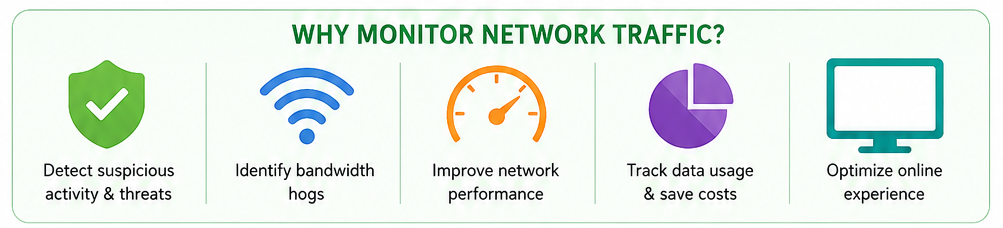
Why You Should Monitor Network Traffic on Windows
Most people only check their internet when something feels wrong. But network monitoring is not just for fixing slow speeds. It is also important for security and performance.
When you regularly track network connections on PC, you can:
- Detect malware communicating in the background
- Identify apps consuming excessive bandwidth
- Improve online gaming performance
- Monitor WiFi usage across devices
- Reduce unnecessary data usage
- Improve overall internet traffic management
Honestly, many Windows users are surprised when they discover how much data apps consume silently. Cloud backup tools, browser updates, and streaming services can use large amounts of bandwidth without obvious signs.
Built-In Windows Tools for Network Monitoring
Before downloading extra software, it is worth exploring the tools already included with Windows.
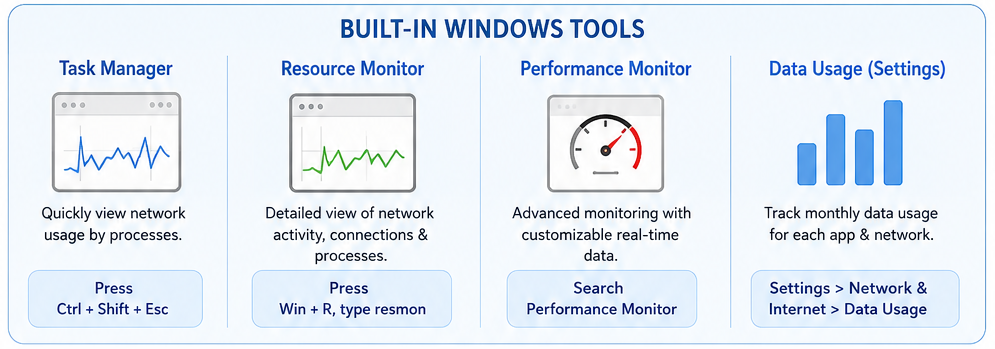
1. Task Manager
Task Manager offers a quick overview of current network activity.
To open it:
- Press
Ctrl + Shift + Esc - Click the Processes tab
- Check the Network column
This simple feature helps you instantly see which applications are using your internet connection.
It is not a full real-time network traffic analyzer, but it works well for basic troubleshooting.
2. Resource Monitor
The Windows resource monitor network tab provides more detailed insights.
Here is how to access it:
- Press
Windows + R - Type
resmon - Open the Network tab
This section allows you to:
- View active TCP connections
- Monitor send and receive activity
- Analyze processes using bandwidth
- Observe network usage statistics Windows
For many users, Resource Monitor is one of the most underrated built-in tools.
Built-In Windows Network Monitoring Features
| Tool | Main Purpose | Best For | Difficulty Level |
|---|---|---|---|
| Task Manager | Quick bandwidth check | Beginners | Easy |
| Resource Monitor | Detailed network processes | Intermediate users | Medium |
| Performance Monitor | Advanced diagnostics | IT professionals | Advanced |
| Settings Data Usage | Monthly usage tracking | Home users | Easy |
How to Monitor Network Traffic on Windows Using Data Usage Settings
Windows 10 and Windows 11 include a built-in Windows data usage monitor.
To find it:
- Open Settings
- Go to Network & Internet
- Click Data Usage
This section displays:
- Total monthly data consumption
- App-specific usage statistics
- Network consumption trends
If you are on limited internet plans, this feature becomes extremely useful.
You can quickly identify apps consuming abnormal amounts of data. Sometimes streaming apps continue syncing in the background even after you close them.
Small detail. Big bandwidth impact.
Best Third-Party Windows Network Monitoring Tools
Built-in utilities are good, but advanced monitoring requires dedicated software.
Here are some of the best Windows network monitoring tools available today.
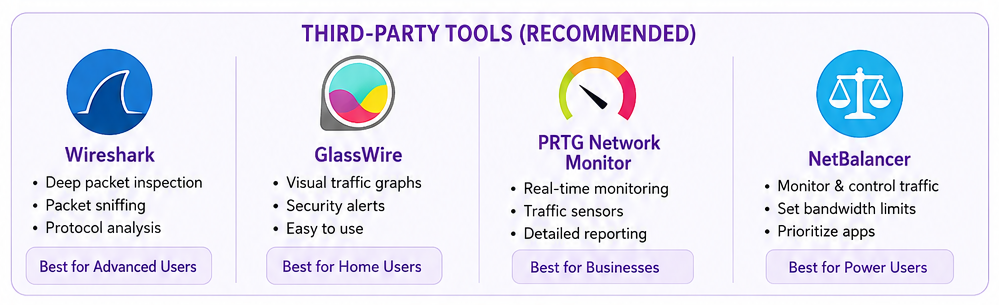
1. Wireshark
Wireshark is one of the most popular network packet monitoring software solutions worldwide.
It specializes in:
- Packet sniffing
- Deep packet inspection
- Protocol analysis
- Advanced network diagnostics
If you want detailed visibility into network communication, Wireshark is incredibly powerful. However, beginners may find the interface slightly overwhelming at first.
2. GlassWire
GlassWire is more beginner-friendly.
It offers:
- Visual traffic graphs
- Security alerts
- Firewall monitoring
- Easy bandwidth analysis
Many home users prefer GlassWire because it makes complex network data easy to understand.
3. PRTG Network Monitor
PRTG focuses on enterprise-level Windows network performance monitoring.
Features include:
- Traffic sensors
- Device monitoring
- Real-time alerts
- Historical traffic reports
It works especially well for offices and larger networks.
Best Network Monitoring Software for Windows
| Software | Best Feature | Ideal User | Free Version |
|---|---|---|---|
| Wireshark | Deep packet inspection | Advanced users | Yes |
| GlassWire | Visual traffic monitoring | Home users | Yes |
| PRTG | Enterprise monitoring | Businesses | Limited |
| NetBalancer | Bandwidth control | Power users | Trial |
How to Monitor Network Traffic on Windows in Real Time
Real-time monitoring helps you catch problems immediately instead of discovering them later.
To analyze network traffic Windows 11 in real time:
Use Performance Monitor
- Search for Performance Monitor
- Open Performance Monitor
- Add counters for:
- Network Interface
- Bytes Sent/sec
- Bytes Received/sec
This tool gives live network metrics and helps with professional TCP/IP monitoring.
At first glance, it looks a bit old-school. Honestly, Microsoft has not modernized the interface much. Still, it remains surprisingly effective.
Monitor WiFi Traffic on Windows
Wireless networks often experience hidden traffic spikes. Devices like smart TVs, phones, tablets, and gaming consoles constantly exchange data.
To monitor WiFi traffic on Windows, you can:
- Use Resource Monitor
- Install GlassWire
- Check router admin panels
- Use bandwidth analyzers
A good bandwidth monitoring tool for Windows can help you identify devices slowing down your connection.
Sometimes the culprit is unexpected. Maybe someone left 4K streaming running in another room. Or perhaps cloud sync software started uploading gigabytes of files overnight.
It happens more often than people realize.
Detect Suspicious Network Activity
One major reason to monitor traffic is security.
Cyber threats often create unusual outgoing connections. Malware may silently upload files or communicate with remote servers.
Here are warning signs to watch for:
- High bandwidth usage while idle
- Unknown applications using internet access
- Random connection spikes
- Frequent outbound connections
When you detect suspicious network activity, immediately run antivirus and malware scans.
Using tools with real-time network traffic analyzer capabilities can help identify hidden threats early.
Common Network Problems and Solutions
| Problem | Possible Cause | Recommended Solution |
|---|---|---|
| Slow internet | Background downloads | Check Task Manager |
| High data usage | Cloud syncing apps | Use Data Usage Monitor |
| Random connection spikes | Malware activity | Run security scans |
| Gaming lag | Bandwidth congestion | Limit background apps |
| WiFi instability | Device overload | Monitor router traffic |
Advanced Techniques for Network Monitoring
If you want deeper insights, advanced methods can provide professional-level control.
Packet Sniffing
Packet sniffing captures network packets traveling through your system.
It helps you:
- Inspect network requests
- Diagnose latency
- Detect unauthorized access
- Understand protocol behavior
Wireshark is commonly used for this purpose.
Bandwidth Analysis
Good bandwidth analysis identifies which apps consume the most resources.
This is especially helpful for:
- Streaming setups
- Gaming PCs
- Office networks
- Content creators
Internet Traffic Management
Strong internet traffic management helps balance performance across devices.
You can:
- Prioritize gaming traffic
- Limit background apps
- Reduce update bandwidth
- Control downloads
Even simple adjustments can noticeably improve browsing speed.
Tips to Improve Windows Network Performance
Once you learn How to Monitor Network Traffic on Windows, optimization becomes easier.
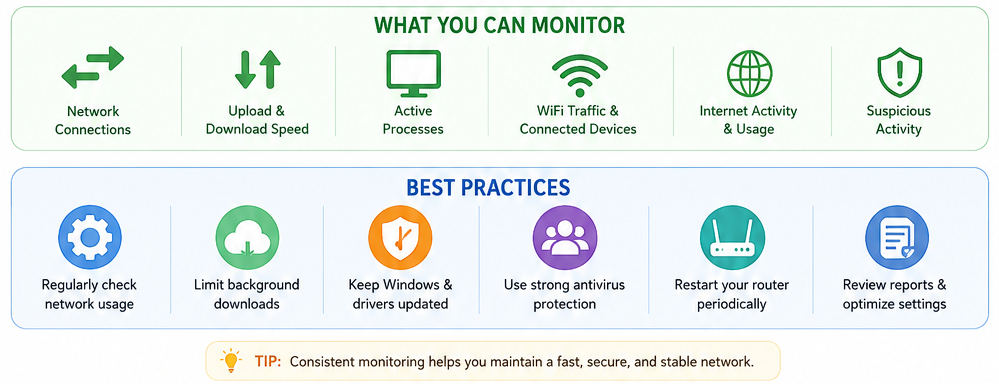
Here are some practical tips:
- Disable unnecessary startup apps
- Pause cloud synchronization during gaming
- Keep network drivers updated
- Use Ethernet for stable speeds
- Restart routers regularly
- Scan for malware frequently
And honestly, restarting your router still fixes more issues than many people expect.
Simple? Yes. Effective? Also yes.
Common Mistakes Users Make
Many users accidentally ignore important warning signs.
Here are common mistakes:
- Never checking network usage statistics Windows
- Ignoring unusual bandwidth spikes
- Installing too many background apps
- Using outdated network drivers
- Failing to monitor public WiFi connections
Network monitoring is not only for IT professionals anymore. With increasing online threats, even regular home users benefit from basic monitoring habits.
Conclusion
Learning How to Monitor Network Traffic on Windows can dramatically improve your internet experience, security, and system performance. Whether you use built-in Windows utilities or advanced Windows network monitoring tools, understanding your network activity gives you far more control over your PC.
Features like the Windows resource monitor network tab, Windows data usage monitor, and professional tools for packet sniffing, bandwidth analysis, and TCP/IP monitoring make it easier than ever to identify bandwidth issues and improve internet traffic management.
The best approach is to start simple. Use Task Manager and Resource Monitor first. Then move toward advanced tools if you need deeper visibility.
In many cases, just monitoring your traffic regularly can prevent problems before they become serious.
FAQ
How can I monitor internet activity on Windows without software?
You can use Task Manager, Resource Monitor, and Data Usage settings built into Windows to monitor network activity without installing third-party tools.
What is the best free network monitoring tool for Windows?
Wireshark and GlassWire are among the best free options. Wireshark is ideal for advanced users, while GlassWire is more beginner-friendly.
How do I check network bandwidth usage Windows?
Open Task Manager or Resource Monitor to see live bandwidth usage by applications and services.
Can Windows detect suspicious network activity?
Windows Defender and Resource Monitor can help identify suspicious traffic, but dedicated monitoring software offers better visibility.
Is packet sniffing legal?
Yes, packet sniffing is legal on networks you own or manage. Monitoring unauthorized networks may violate laws or privacy policies.